
Overview
WPRentals can use Google Maps to display maps, property pins, location autocomplete, geocoding, and other location-related features.
To use Google Maps on your website, you need to create a Google Maps API key from your Google Cloud account and add it in the theme options.
The API key connects your website to your Google Cloud project and allows Google Maps services to load on your WPRentals website.
Why You Need a Google Maps API Key
Google Maps requires an API key before maps and location services can be used on your website.
In WPRentals, the Google Maps API key can be needed for:
- Google Maps display.
- Property pins on the map.
- Half Map layouts.
- Google Places autocomplete.
- Location search suggestions.
- Geocoding addresses and coordinates.
- Street View or static map-related services, depending on your setup.
Google Maps Platform uses a pay-as-you-go pricing model. Billing must be enabled in Google Cloud for production use, even if your website stays within Google’s available free monthly usage.
Check Google’s official pricing and billing pages before using Google Maps on a live website:
https://developers.google.com/maps/billing-and-pricing/overview
https://developers.google.com/maps/billing-and-pricing/manage-costs
Before You Start
Before creating the API key, make sure you have:
- A Google account.
- Access to Google Cloud Console.
- A Google Cloud project for the website.
- Billing enabled for the project.
- The required Google Maps APIs enabled.
- The website domain ready, so you can restrict the key correctly.
How to Get a Google Maps API Key
Follow the steps below to create the Google Maps API key and add it in WPRentals.
Step 1: Enable Billing in Google Cloud
Go to Google Cloud Console and sign in with your Google account:
Google requires billing to be enabled for Maps Platform APIs used on live websites.
Add your billing details in the Google Cloud Billing section before using the API key on your website.

Step 2: Create or Select a Google Cloud Project
In Google Cloud Console, create a new project for your website or select an existing project.
Use one project for the website so the API key, enabled APIs, restrictions, usage, and billing are easier to manage.
Step 3: Enable the Required APIs
In Google Cloud Console, go to:
APIs & Services > Library
Enable the APIs needed by the theme.
For WPRentals Google Maps features, enable:
- Maps JavaScript API
- Maps Static API
- Places API
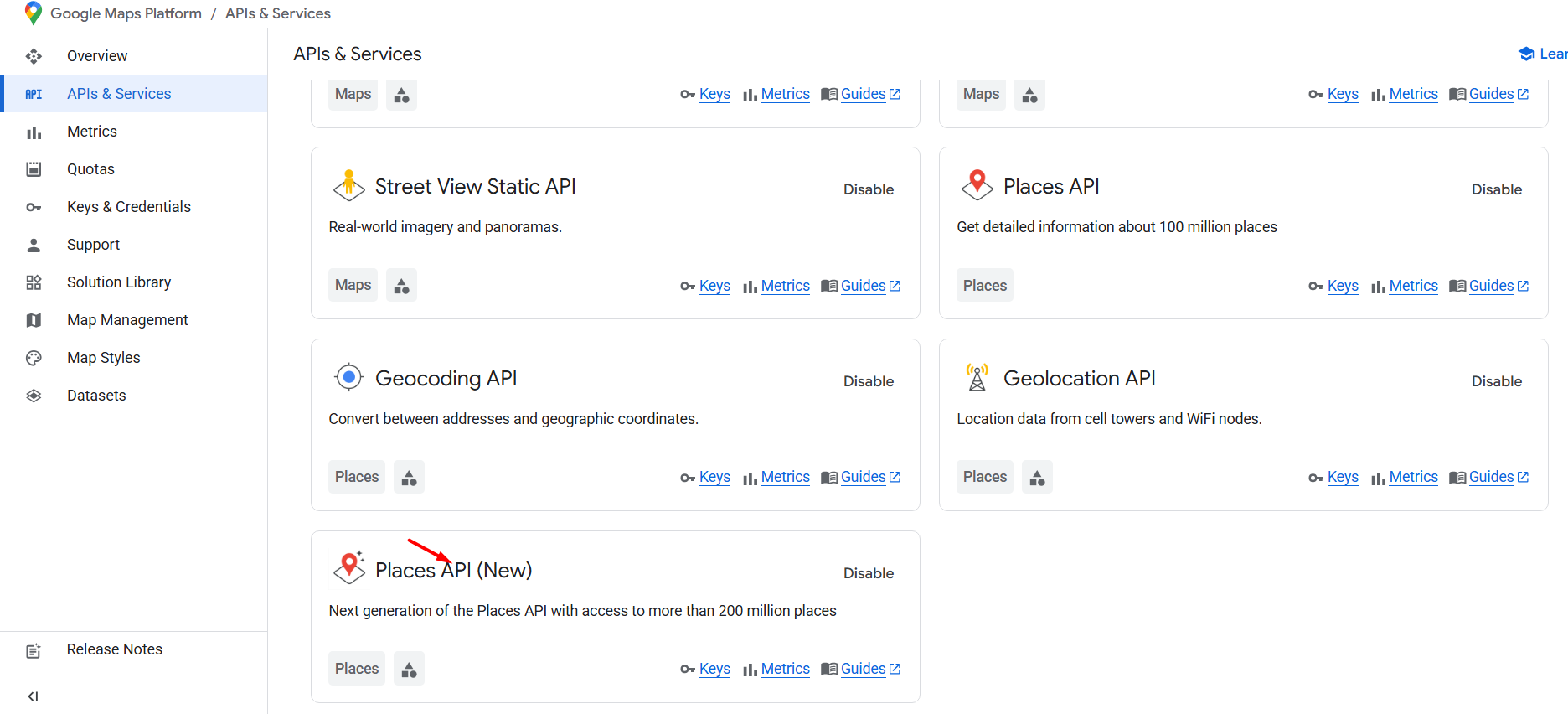
- Places API (New)
- Geocoding API
- Geolocation API
- Street View Static API
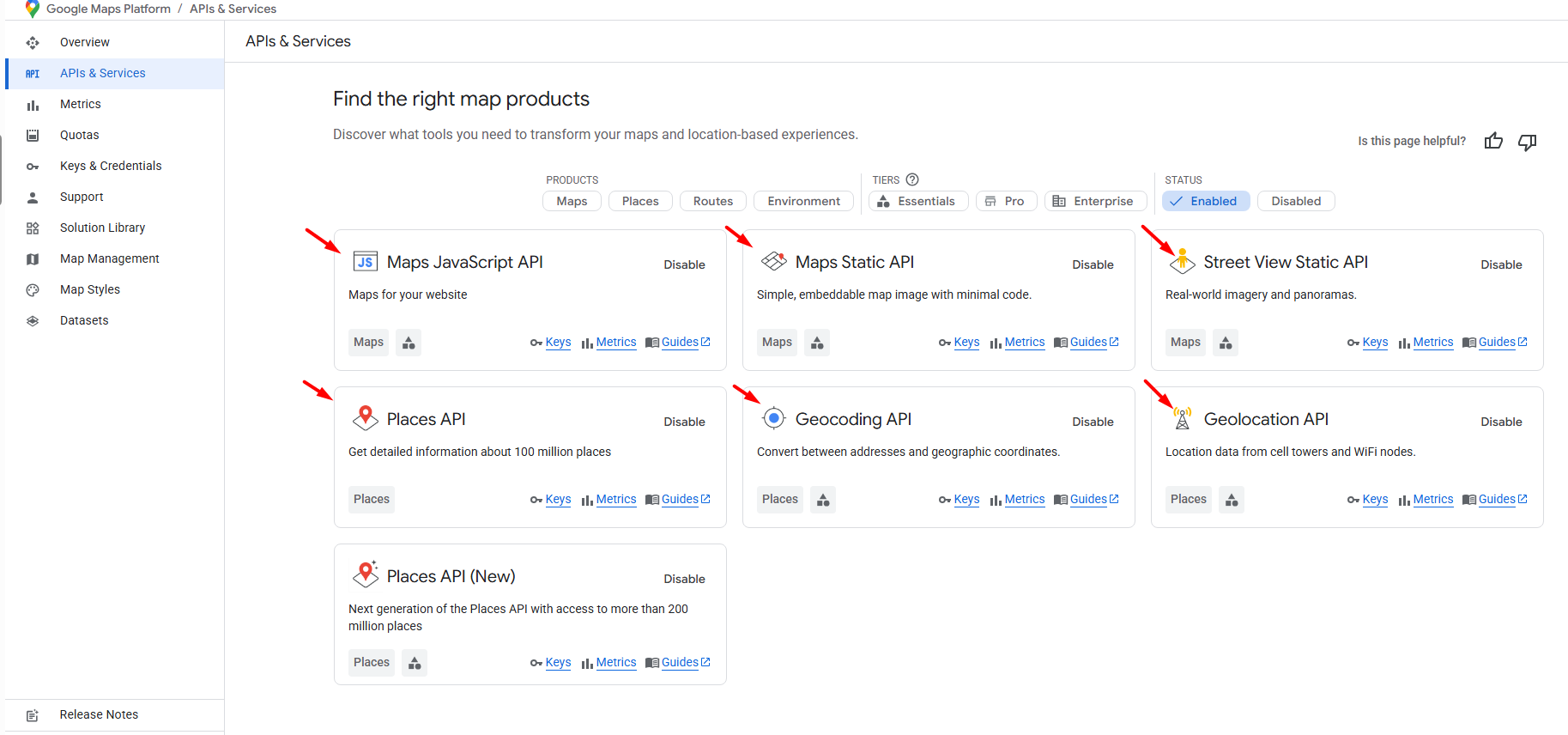
If your account or project still uses older Places services, check that both the required Places API options are enabled for the API key used on the website.
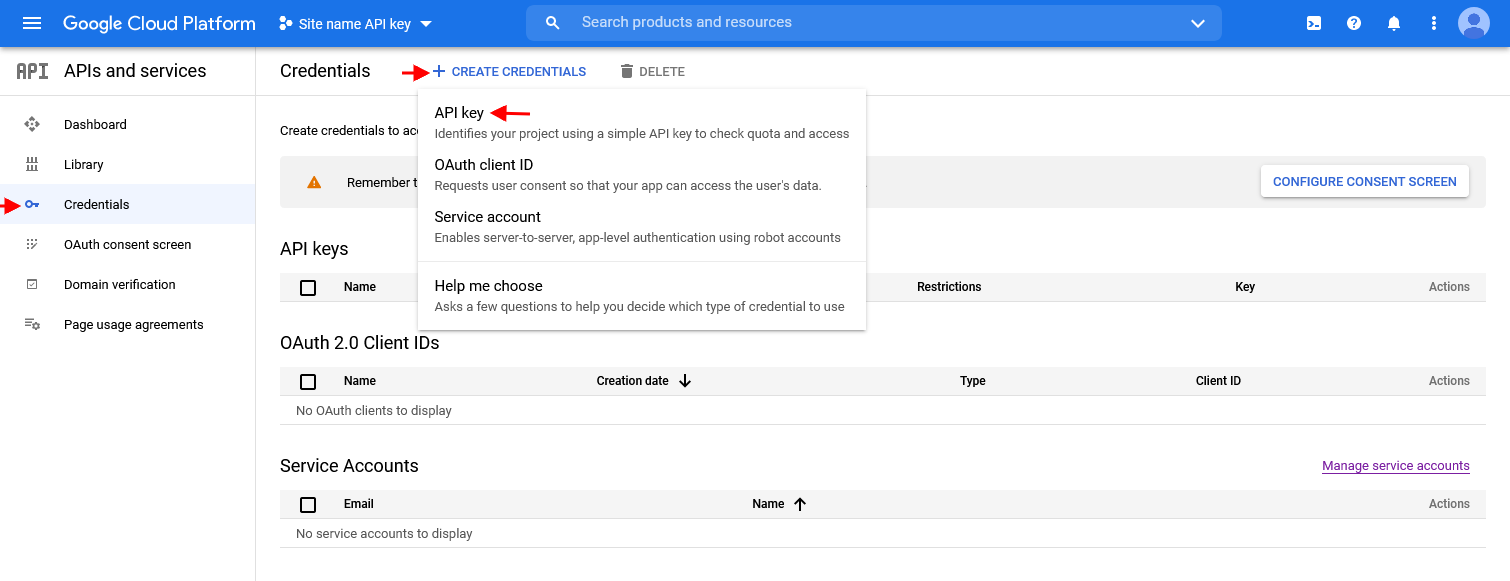
Step 4: Create the API Key
In Google Cloud Console, go to:
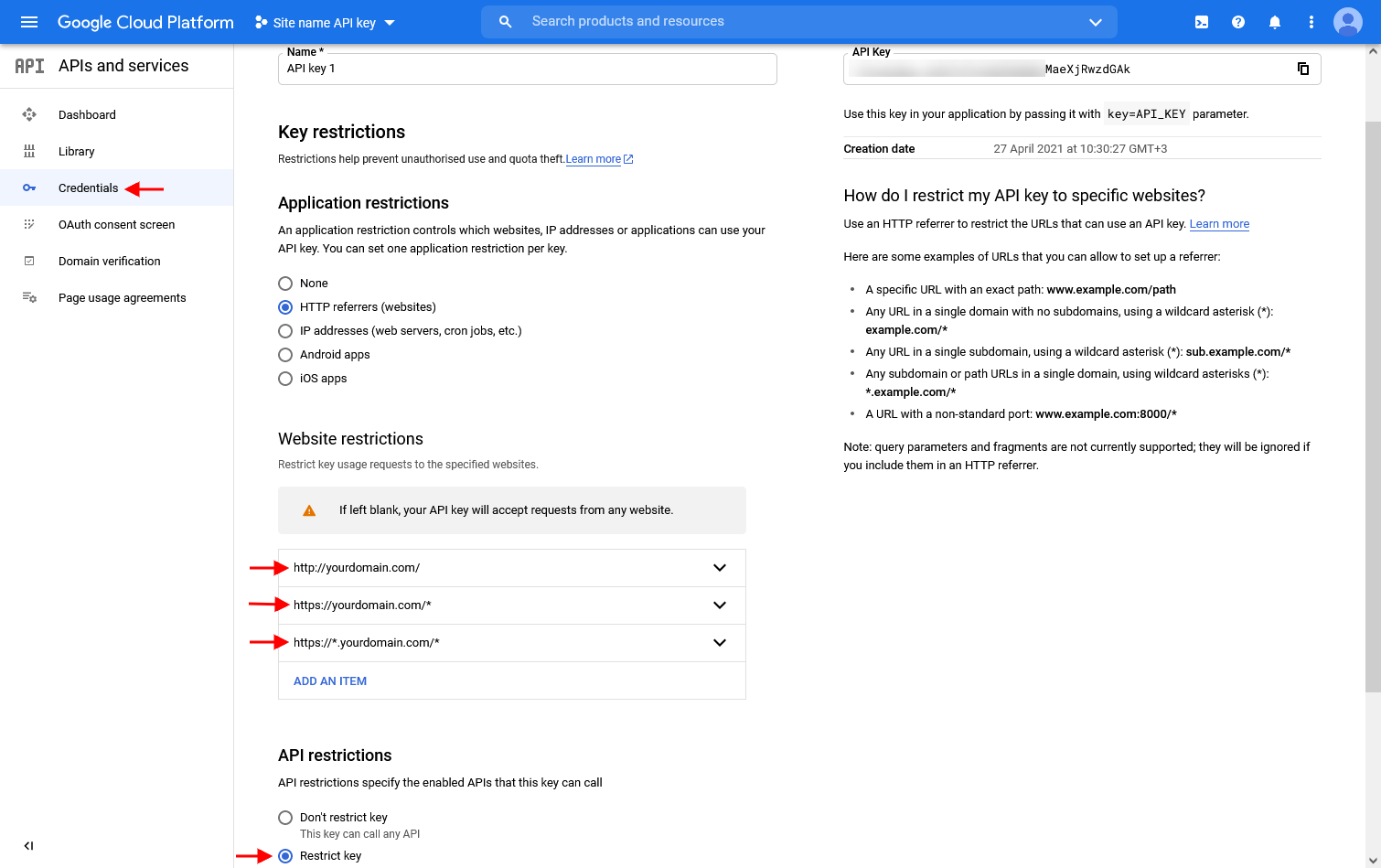
APIs & Services > Credentials
Create a new API key for your website.
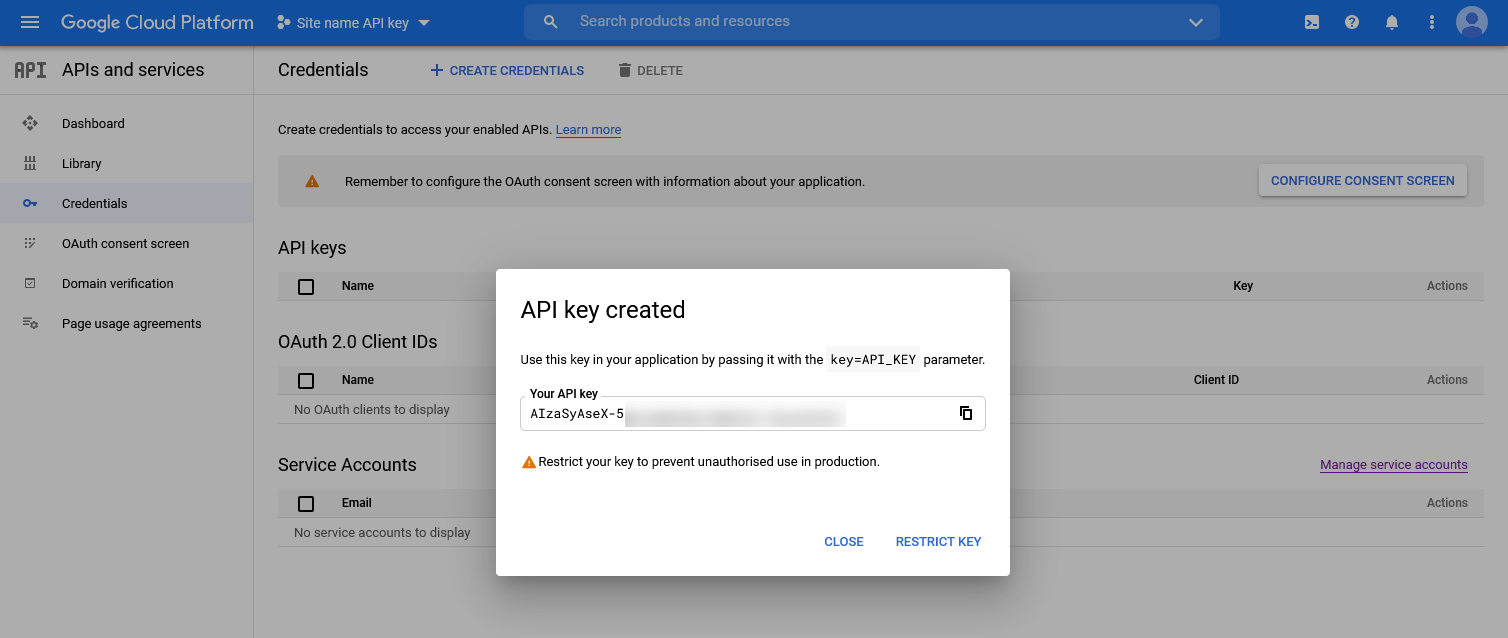
Step 5: Restrict the API Key
For security, always restrict your API key.
An unrestricted API key can be used by other websites if copied. This can create unwanted usage or billing on your Google Cloud account.
For a website, use HTTP referrer restrictions and add your website domain.
Use wildcard domain rules so the key works on all pages of your website.
Examples:
- https://yourdomain.com/*
- https://www.yourdomain.com/*
If your website uses both the www and non-www versions, add both versions.
If your website uses a staging domain or subdomain, add that domain too while testing.

Step 6: Add the API Key in WPRentals
Copy the API key from Google Cloud Console.

In WordPress admin, go to:
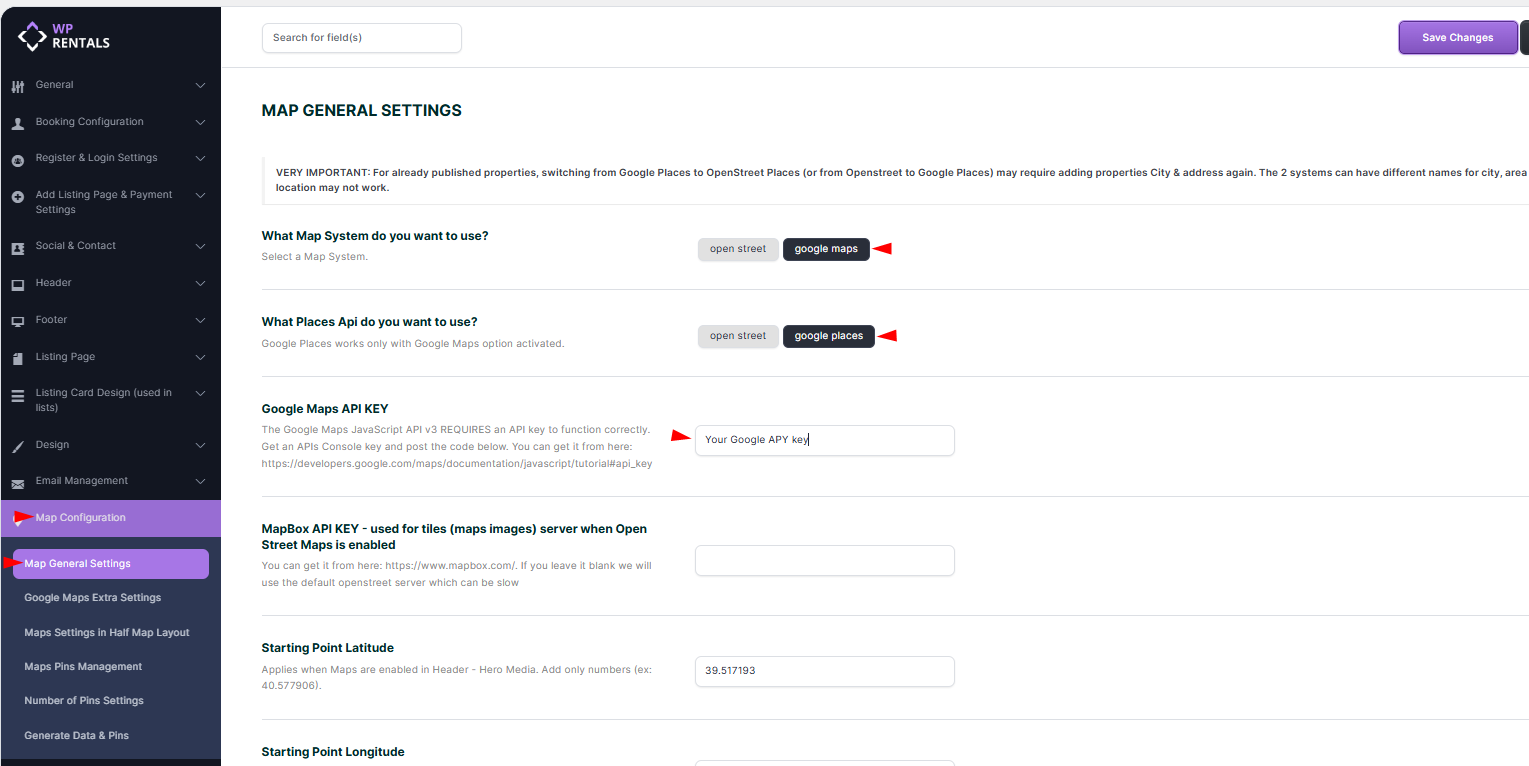
Theme Options > Map Configuration > Map General Settings
Paste the key in the Google Maps API Key field and save the theme options.
Also check these settings:
- Select Google Maps for the map system.
- Select Google Places for the Places API option if you want to use Google location autocomplete.
Google Maps Settings in WPRentals
How to Test if the API Key Works
After adding the API key in WPRentals, test the website front end.
Check:
- The map loads on pages where maps are enabled.
- Property pins show on the map.
- Half Map pages load the map correctly.
- Google Places autocomplete works if enabled.
- No Google Maps error message appears on the page.
If the map does not load, check the browser console for Google Maps errors.
- Open your website in Chrome.
- Right-click on the page and select Inspect.
- Open the Console tab.
- Look for Google Maps error messages.
Common Reasons Google Maps Does Not Load
If Google Maps does not load, check the following:
- Billing is not enabled in Google Cloud.
- The required APIs are not enabled.
- Places API (New) is missing when Places autocomplete is used.
- The API key is restricted to the wrong domain.
- The website URL was added incorrectly in HTTP referrer restrictions.
- The website uses www but only the non-www domain was added, or the opposite.
- The website uses HTTPS but only the HTTP version was added.
- The API key was copied incorrectly.
- The wrong Google Cloud project was used.
- The site cache still loads an old key.
- A cache, optimization, or security plugin blocks Google Maps scripts.
- The Google Cloud account has quota or billing restrictions.
After changing API key settings, clear all cache:
- Theme cache, if used.
- Cache plugin cache.
- Server cache.
- CDN cache, if used.
- Browser cache.
Then test the map again in a private/incognito browser window.
Cost and Usage Control
Google Maps Platform pricing and usage limits are managed by Google from your Google Cloud account.
To control costs, check these options in Google Cloud:
- Billing account settings.
- Budget alerts.
- API usage reports.
- API quotas.
- API key restrictions.
Google provides cost management documentation here:
https://developers.google.com/maps/billing-and-pricing/manage-costs
Useful Google Documentation
Set up the Maps JavaScript API
Google Maps Platform API key security guidance