
Can You Change the Select Box Style in WpRentals
Yes, you can change the style of the select boxes in WpRentals with Custom CSS.
This is useful when the default selection boxes are hard to notice, especially in the front-end dashboard forms used to add or edit listings.
When This Is Useful
You may want to adjust the select box style if:
- the dropdown fields are not easy to see
- the border color is too light
- the field does not stand out enough against the background
- you want the registration or listing submission fields to look clearer
In this case, the CSS below can help improve the visibility of the select boxes in the user dashboard and front-end property submission forms.
CSS Example to Make Select Boxes More Visible
Add the CSS below:
.user_dashboard_panel select,
.user_dashboard_panel .form-control {
    width: 100%;
    padding: 8px 9px;
    margin-bottom: 20px;
    height: 50px;
    font-size: 14px;
    background-color: #FAFAFC;
    border: 1px solid #d8d2ef;
    border-radius: 5px;
    transition: all 0.1s linear;
    color: #8A8F9A;
    box-shadow: inset 0 0 0 1px rgba(128, 106, 230, 0.08);
}

.user_dashboard_panel select:hover {
    border-color: #b8addf;
}

.user_dashboard_panel select:focus {
    outline: none;
    border-color: #806AE6;
    box-shadow: 0 0 0 3px rgba(128, 106, 230, 0.16);
}
Preview
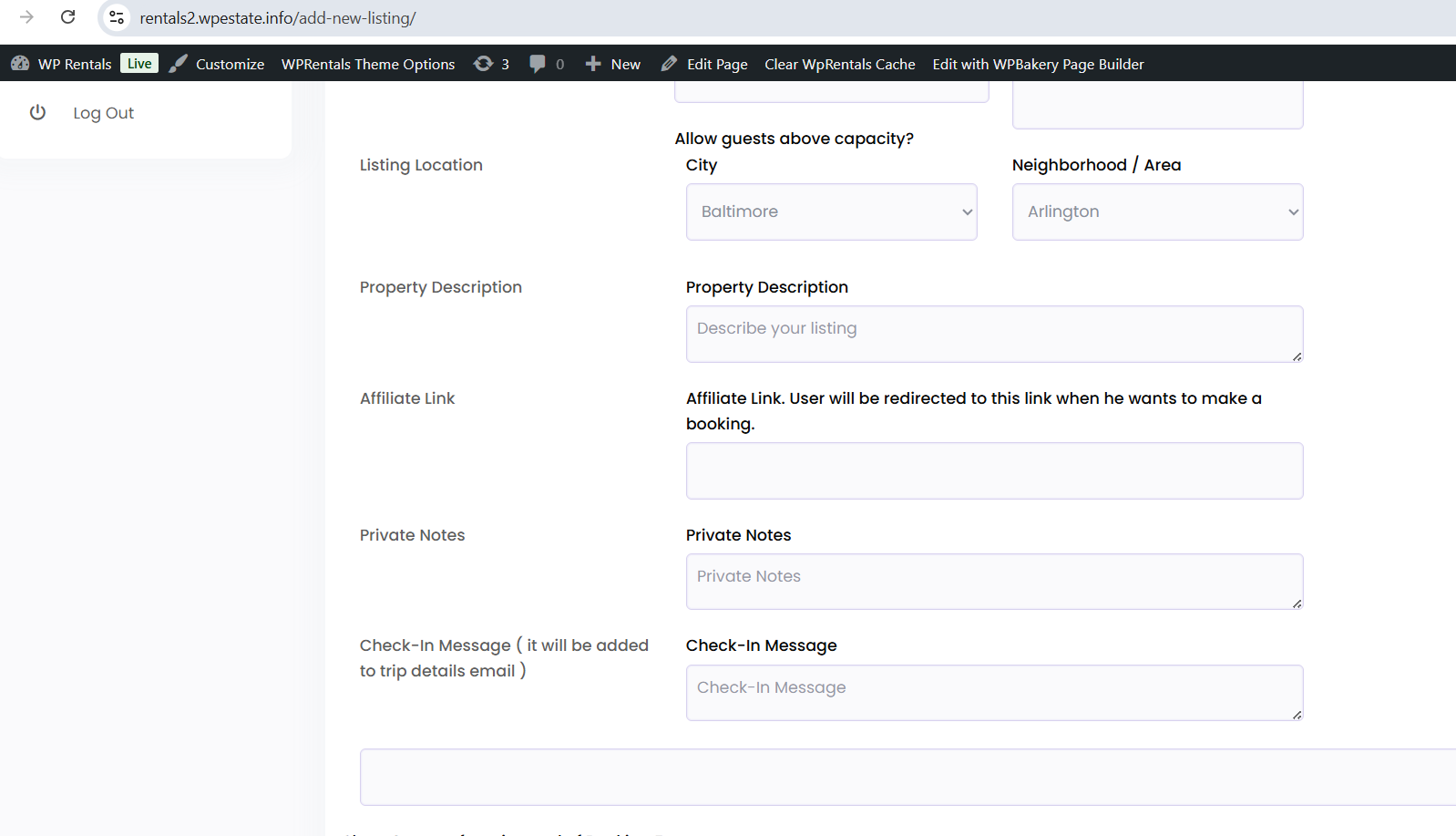
This CSS targets:
- select dropdown fields
- form control fields inside the user dashboard panel
It improves the field visibility by adding a clearer border, a soft background color, rounded corners, and a more visible focus effect.
Where to Add the CSS
You can add this CSS in one of these places:
- Appearance > Customize > Additional CSS
- Theme Options > Design > Custom CSS, depending on your setup
After adding the code, save or publish the changes.
Important: How to Paste the CSS
When adding the CSS, paste it as plain text.
This is important because copying from emails, documents, or support tickets can sometimes include hidden formatting that breaks the code or makes it overwrite the wrong content area.
If your Custom CSS area already contains existing code, do not replace everything unless you intend to. Add the new CSS below the existing code instead.
Clear Cache After Saving
If the style changes are not visible immediately after saving, clear all website cache and refresh the page.
You may need to clear:
- theme cache
- cache plugin cache
- server cache
- CDN cache
- browser cache
After that, refresh the page again or test in an incognito window.
Customize the Style Further
You can adjust the CSS further if you want to match your website design.
For example, you can change:
- border color
- background color
- text color
- height
- spacing
- focus effect
This makes it possible to keep the same structure while making the selection boxes more visible and easier for users to notice when filling in listing forms.