
Overview
The WPRentals Availability Calendar widget shows the booked and available dates for one property.
The widget uses the property booking calendar, so it must be connected to the correct listing by using the listing ID.
Before You Start
Before adding the Availability Calendar widget, check the following:
- The property listing already exists.
- The listing has a booking calendar.
- You know the listing ID of the property you want to display.
- The page is edited with Elementor or WPBakery.
How to Find the Listing ID
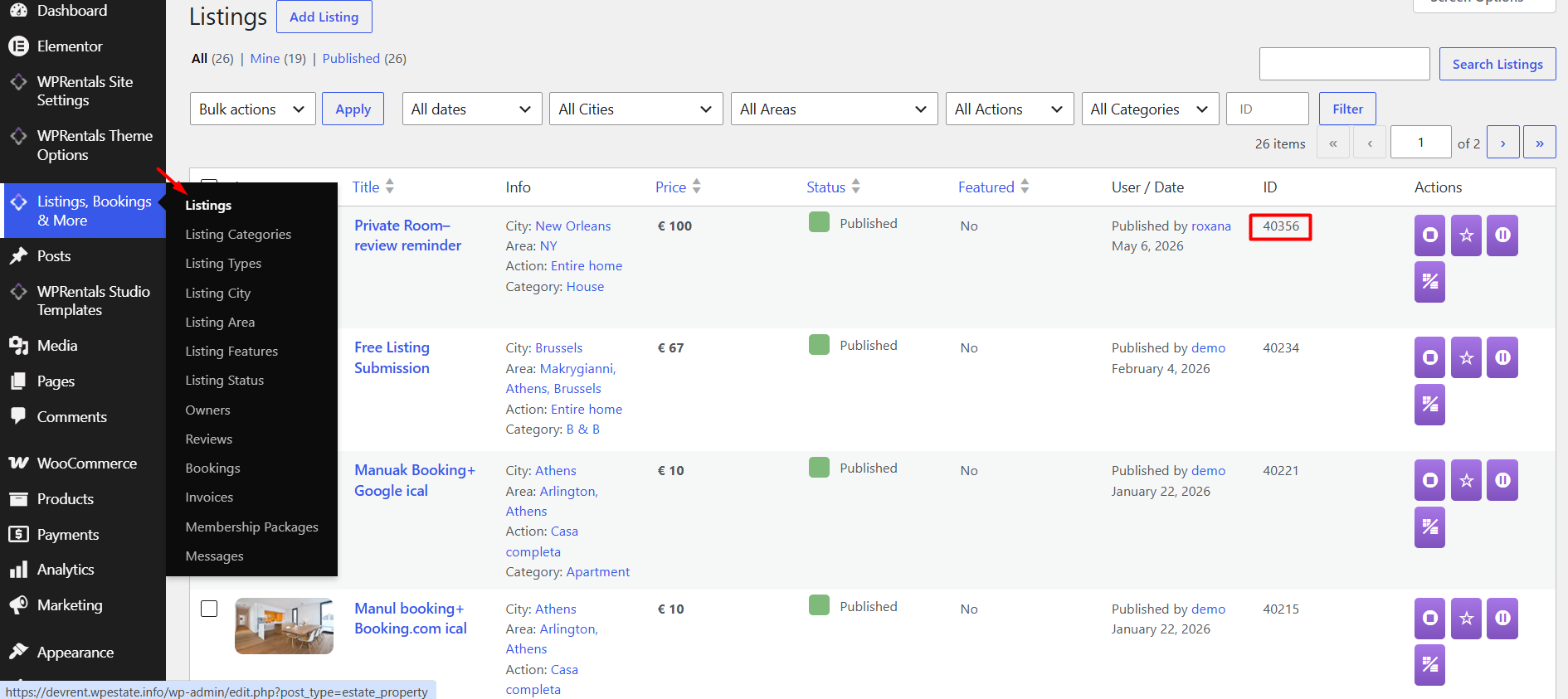
To show the calendar for the correct property, you need the listing ID.
Go to:
Wp-admin > Listings
Find the property you want to use and copy the ID from the ID column.
How to Use the Availability Calendar in Elementor
Step 1: Edit the Page with Elementor
Open the page or template where you want to add the calendar and click Edit with Elementor.
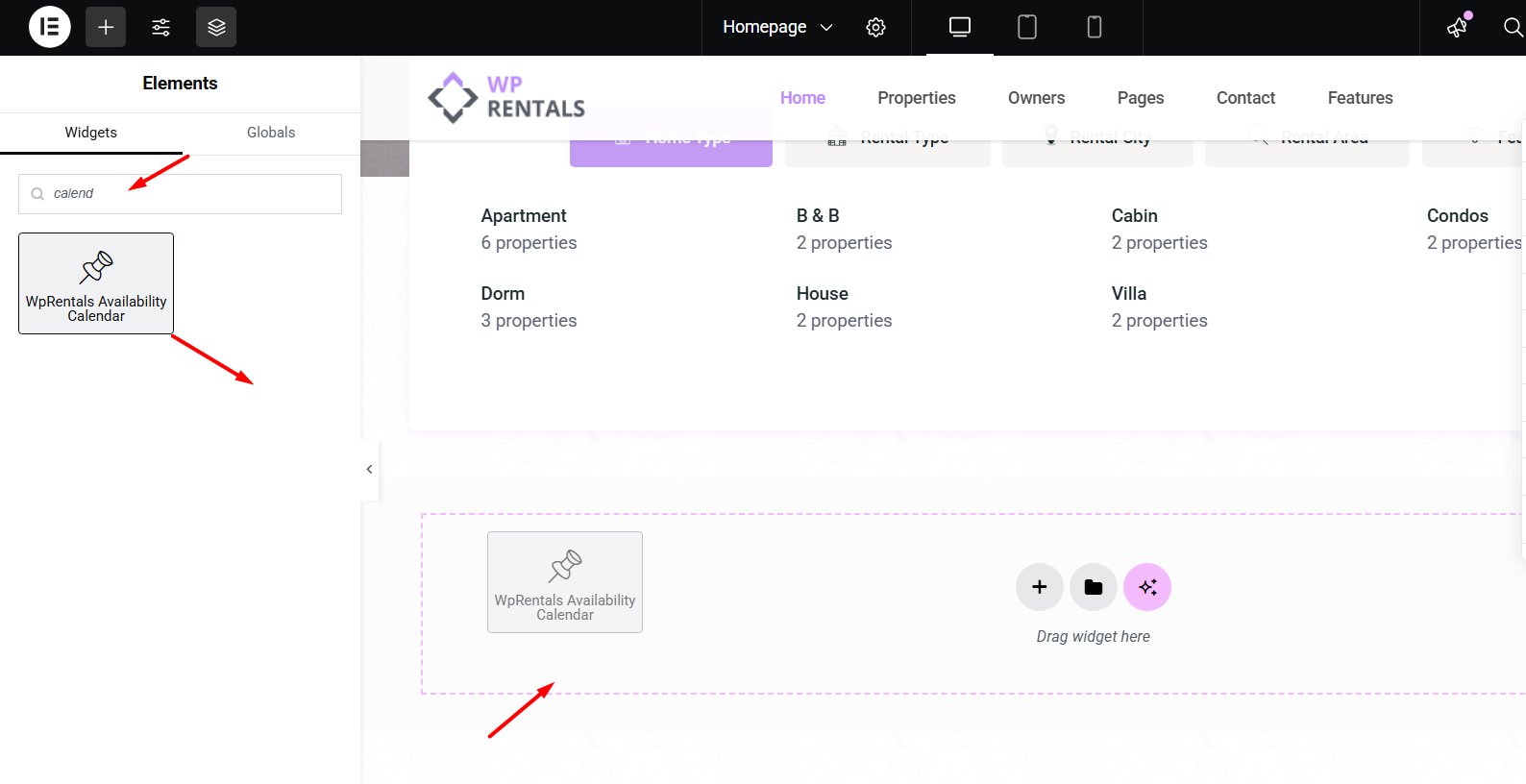
Step 2: Add the Availability Calendar Widget
In the Elementor widgets panel, search for:
Availability Calendar
Drag and drop the widget into the section where you want the calendar to appear.
Step 3: Add the Listing ID
In the widget settings, add the listing ID for the property whose calendar you want to display.
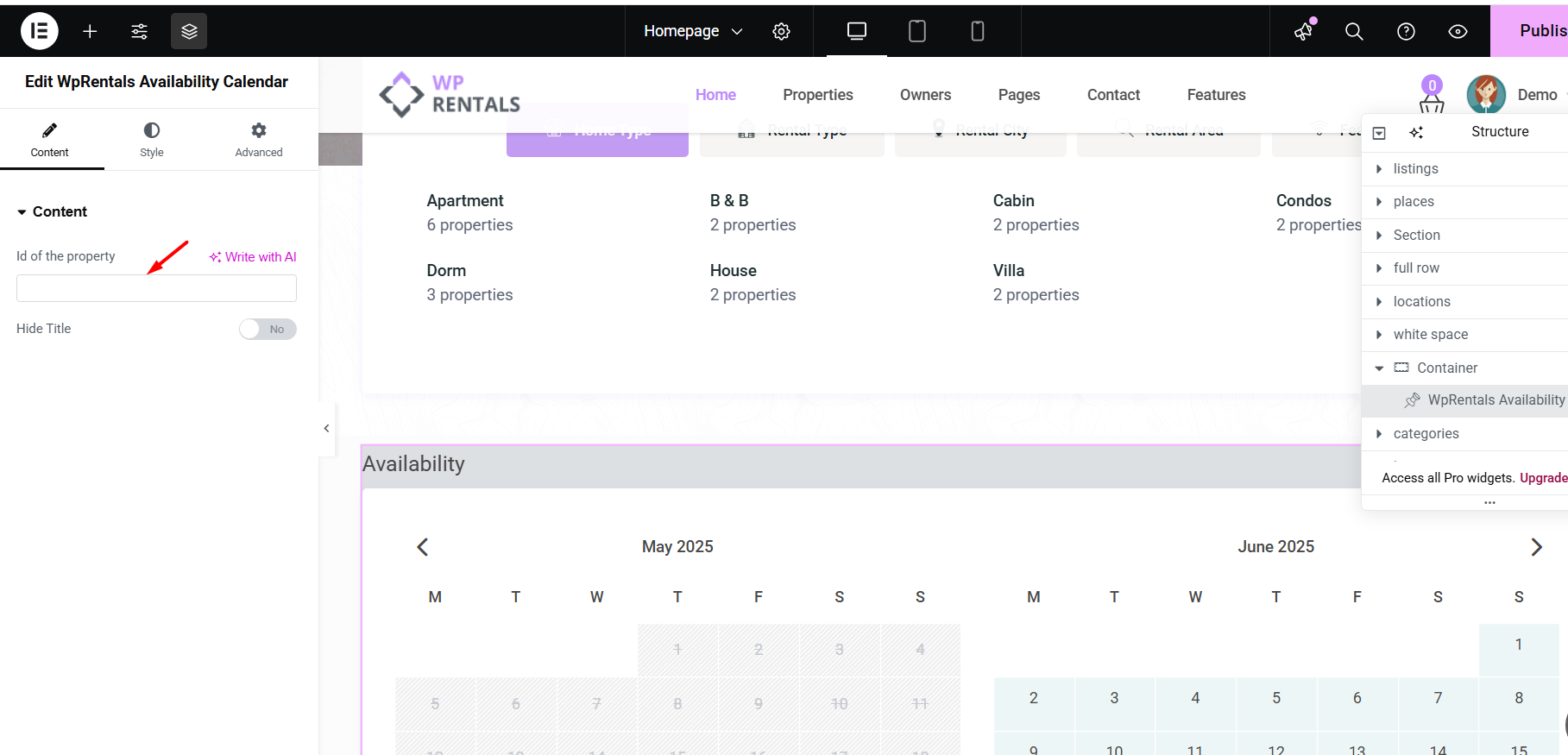
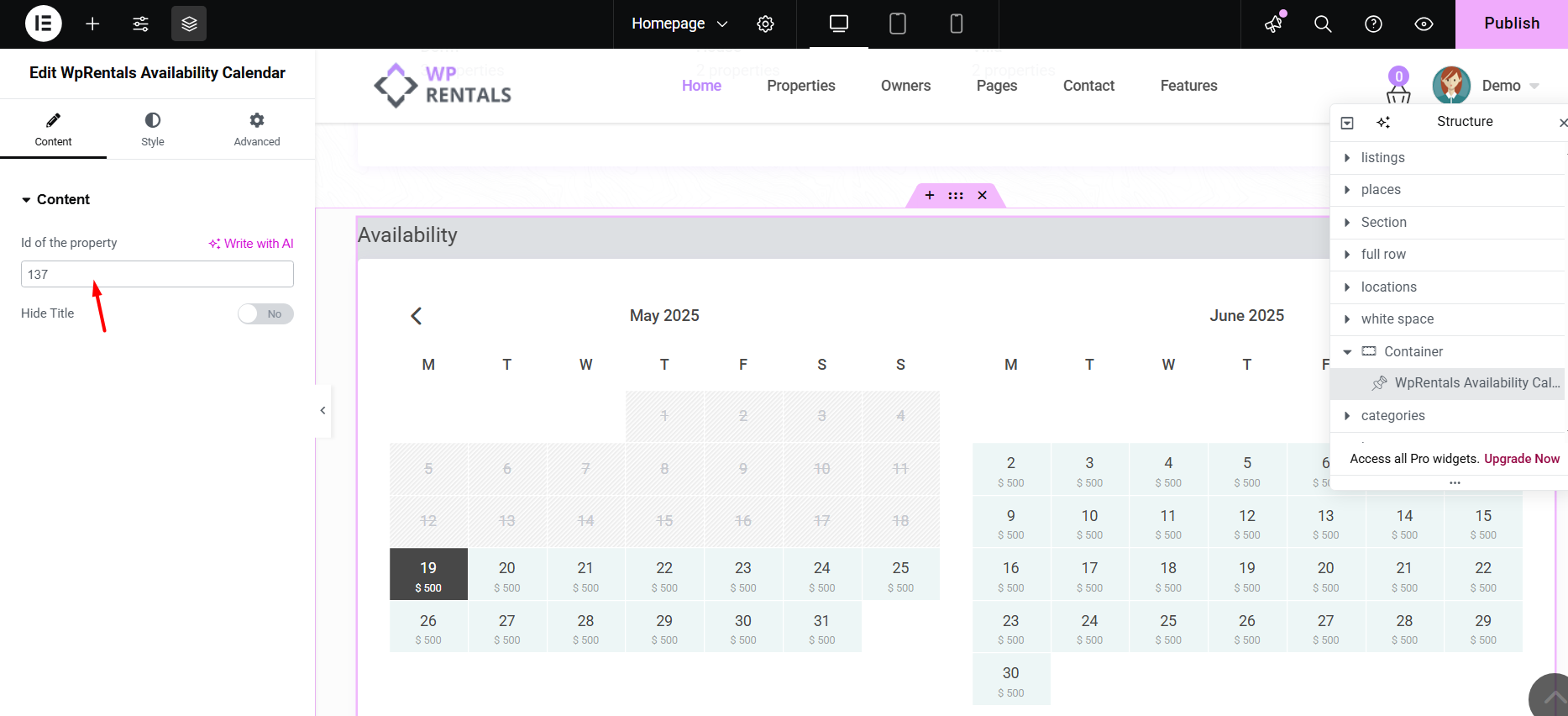
Paste the listing ID in the widget field and save the page.
Elementor Widget Options
Listing ID
This field connects the widget to a specific property.
Add the listing ID copied from Wp-admin > Listings.
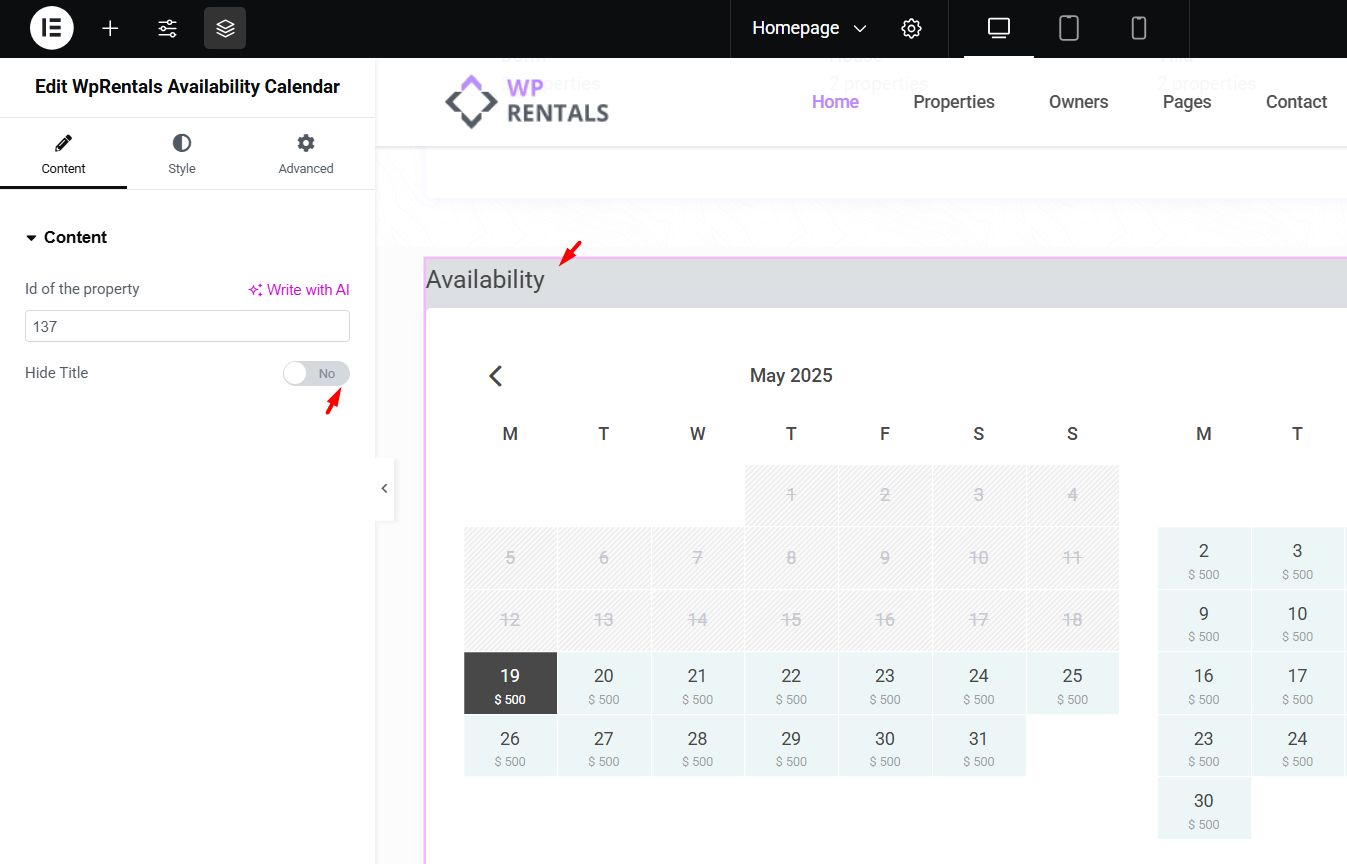
Hide Widget Title
This option controls whether the widget title is shown above the calendar.
- Set this option to Yes to hide the widget title.
- Set this option to No to show the widget title.
How to Style the Availability Calendar Widget
The Elementor widget includes style options that control the calendar container and date boxes.
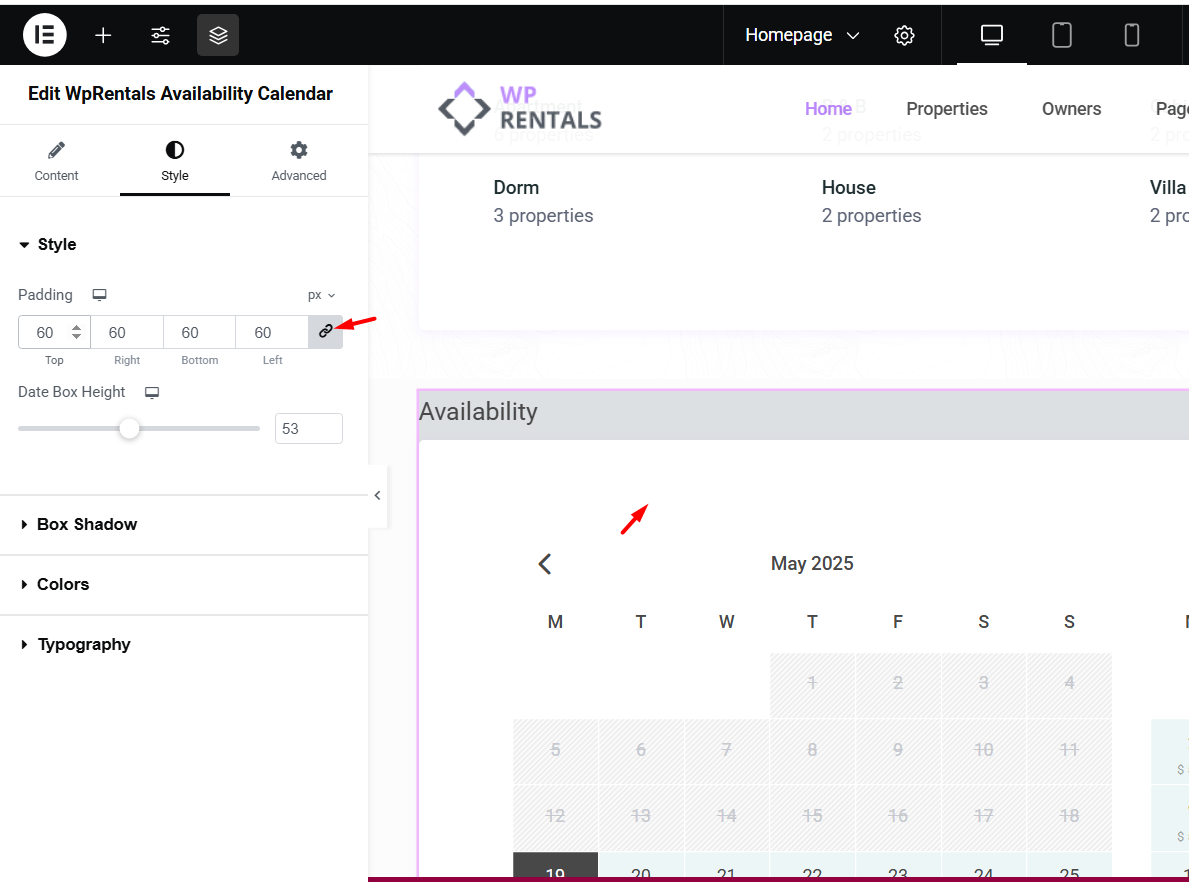
Container Padding
This option controls the internal spacing inside the calendar container.
Use this setting to prevent the calendar from touching the widget edges and to create a cleaner layout.
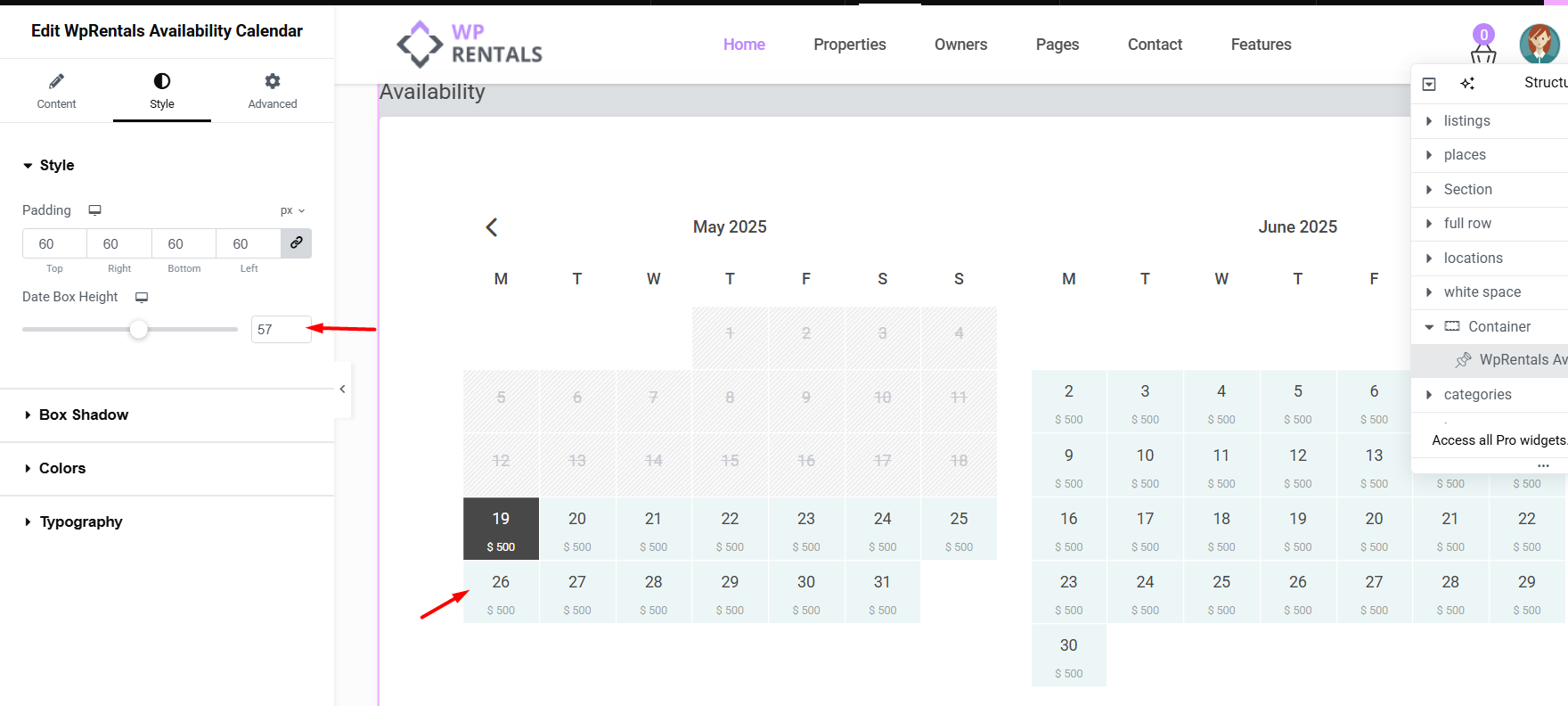
Date Box Height
This option controls the height of each date cell in the calendar.
Use this setting to keep the calendar grid consistent and easy to read.
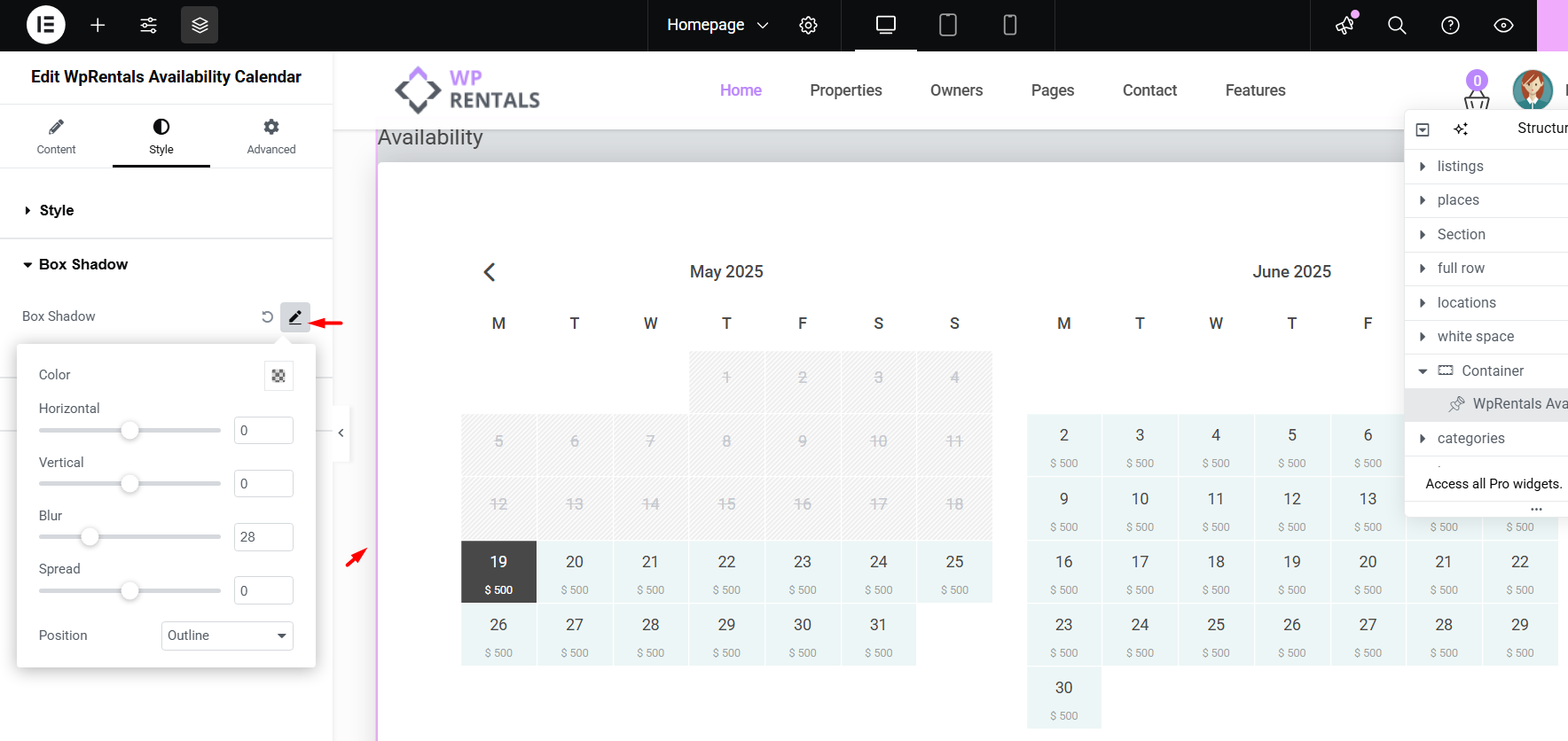
Box Shadow
This option controls the shadow around the calendar container.
Use it if you want the calendar to stand out from the page background.
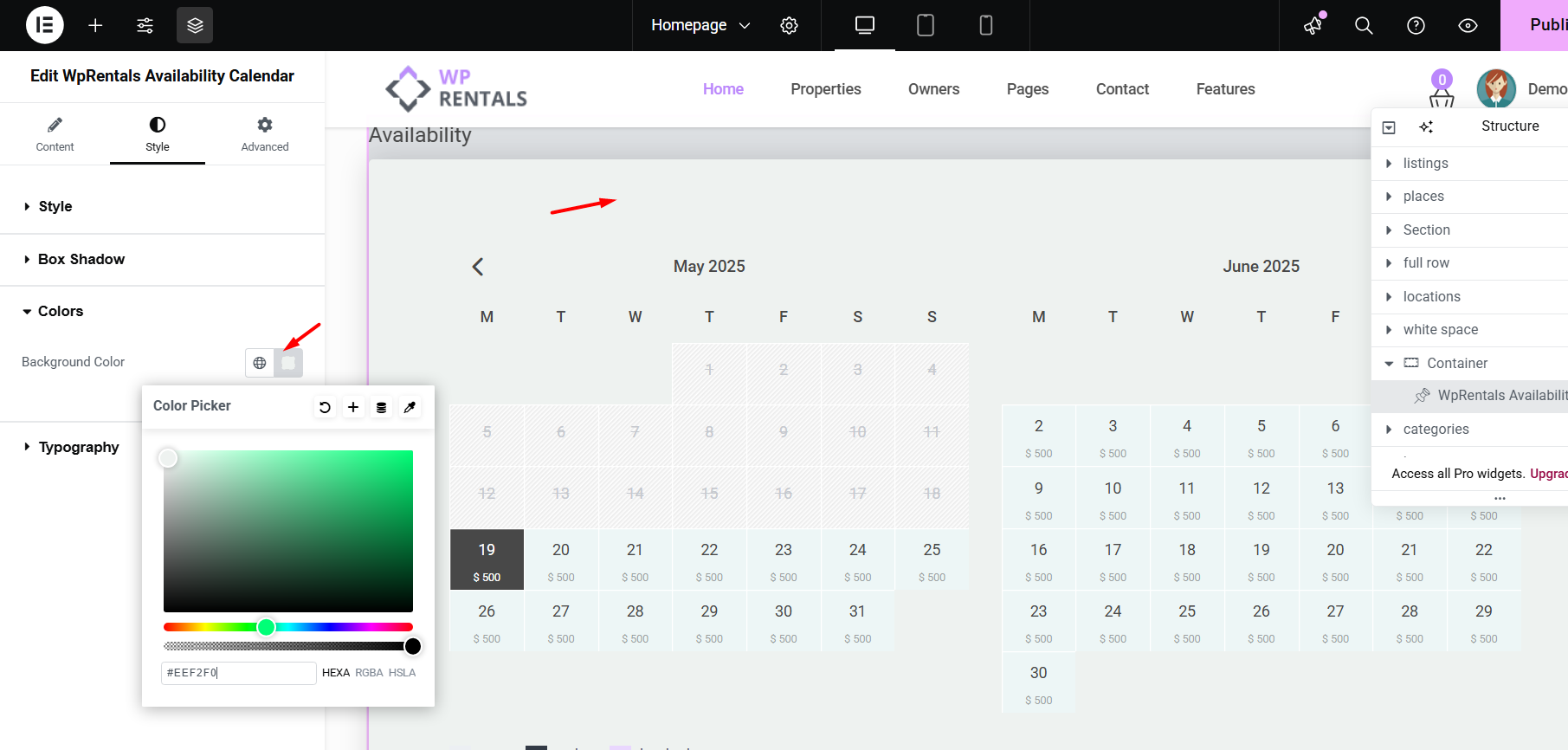
Container Background Color
This option controls the background color of the calendar container.
Calendar Colors from Theme Options
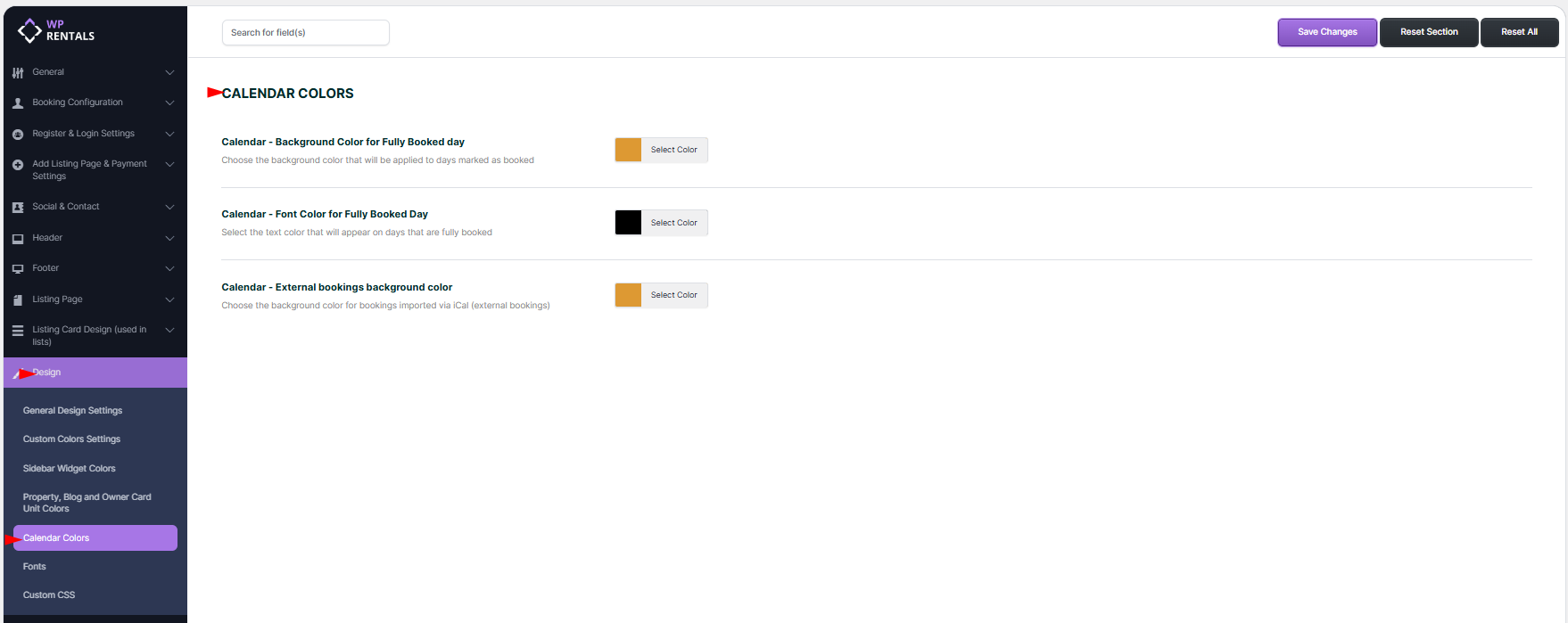
Some calendar colors are managed globally from:
WPRentals Options > Design > Calendar Colors
From this section, you can manage options such as:
- Calendar – Background Color for Day – sets the background color for each day in the calendar.
- Calendar – Font Color for Day – sets the font color for the day numbers.
- Calendar – Internal Booking Color – sets the color used for internally booked dates.
How to Use the Availability Calendar in WPBakery
Step 1: Edit the Page with WPBakery
Go to the page where you want to add the calendar and click Edit with WPBakery Page Builder.
Step 2: Add the Availability Calendar Element
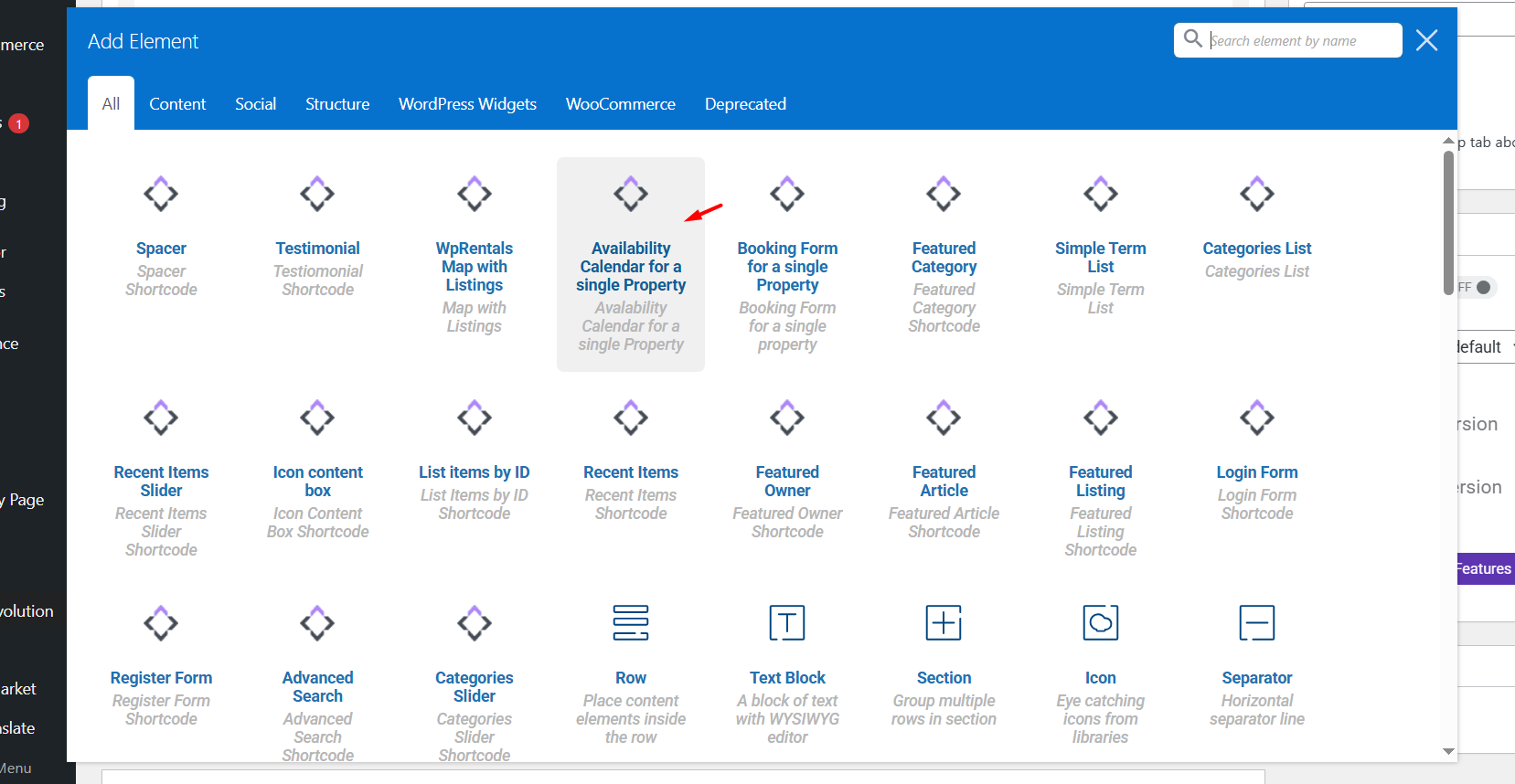
- Click the + button to add a new element.
- Search for Availability Calendar for a single property.
- Click the element to insert it into the page.
Step 3: Add the Listing ID
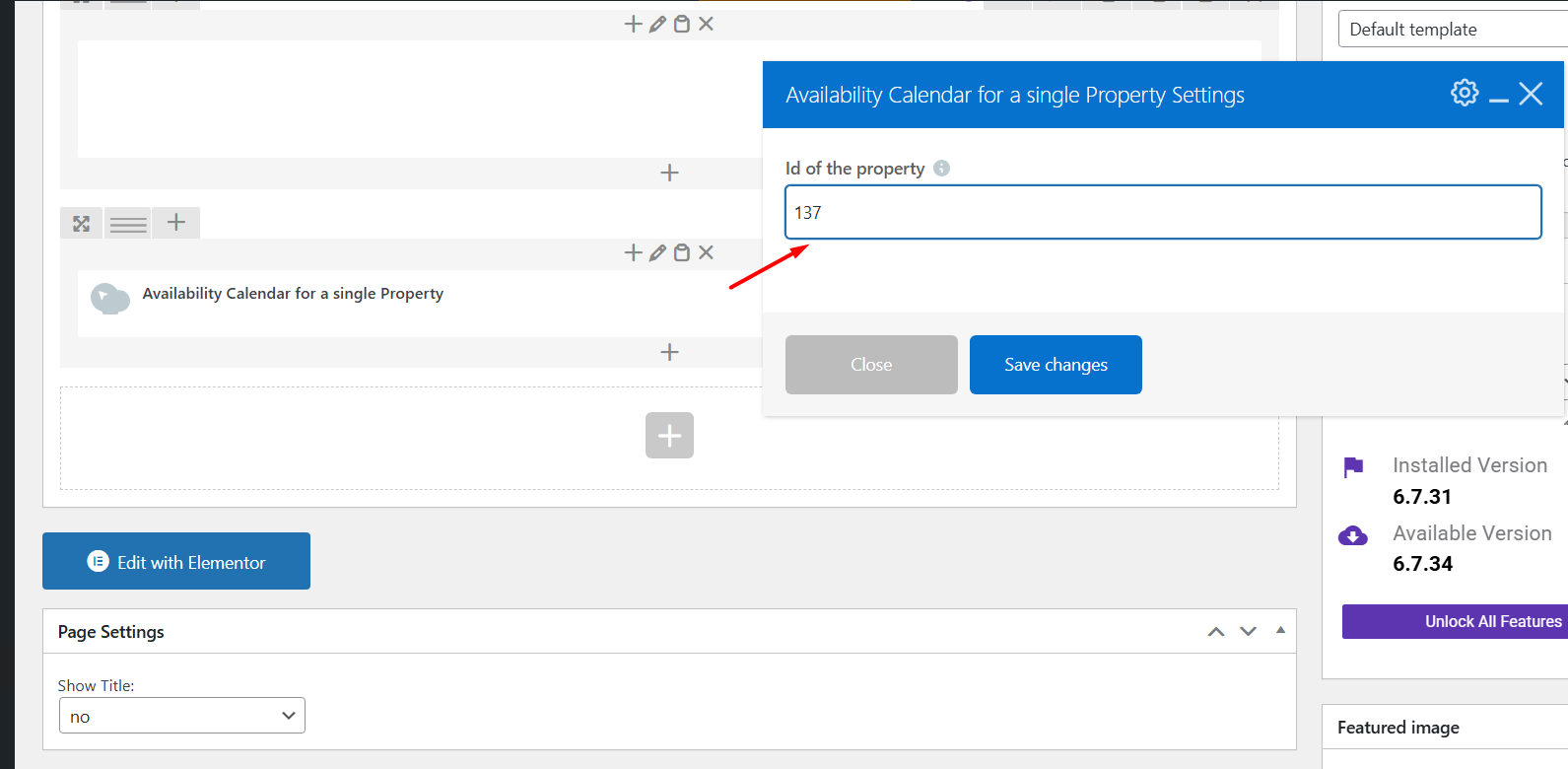
After the element is added, add the listing ID for the property whose availability calendar should be displayed.
Step 4: Save the Page
Save or update the page, then check the calendar on the front end.
Save and Test the Calendar
After adding the widget or WPBakery element, test the calendar on the front end.
- Save or update the page.
- Open the page as a visitor.
- Check that the calendar appears.
- Check that the booked and available dates match the selected property.
- If the wrong calendar appears, verify the listing ID added in the widget or element settings.
Important Notes
- The Availability Calendar widget shows the calendar for one property.
- The widget needs the correct listing ID to display the correct calendar.
- You can find the listing ID from Wp-admin > Listings.
- Use Elementor for pages built with Elementor.
- Use WPBakery for pages built with WPBakery.
- Do not mix Elementor and WPBakery on the same page.
- The Hide Widget Title option controls whether the widget title is shown.
- Some style options are managed from the Elementor widget settings.
- Some calendar colors are managed globally from WPRentals Options > Design > Calendar Colors.
- If the calendar does not update after changes, clear plugin cache, server cache, CDN cache, and browser cache, then test again.