
WPRentals uses the standard WordPress blog post system. This means blog articles are created from Posts in the WordPress admin area, then displayed on the front end using the WPRentals blog post design.
The Single Blog Post template controls how an individual blog article is displayed. This is the page where visitors can read the full article, see the featured image, view related posts, leave comments, and share the post.
How to Add a New Blog Post
To create a new blog post, go to:
WordPress Admin > Posts > Add Post
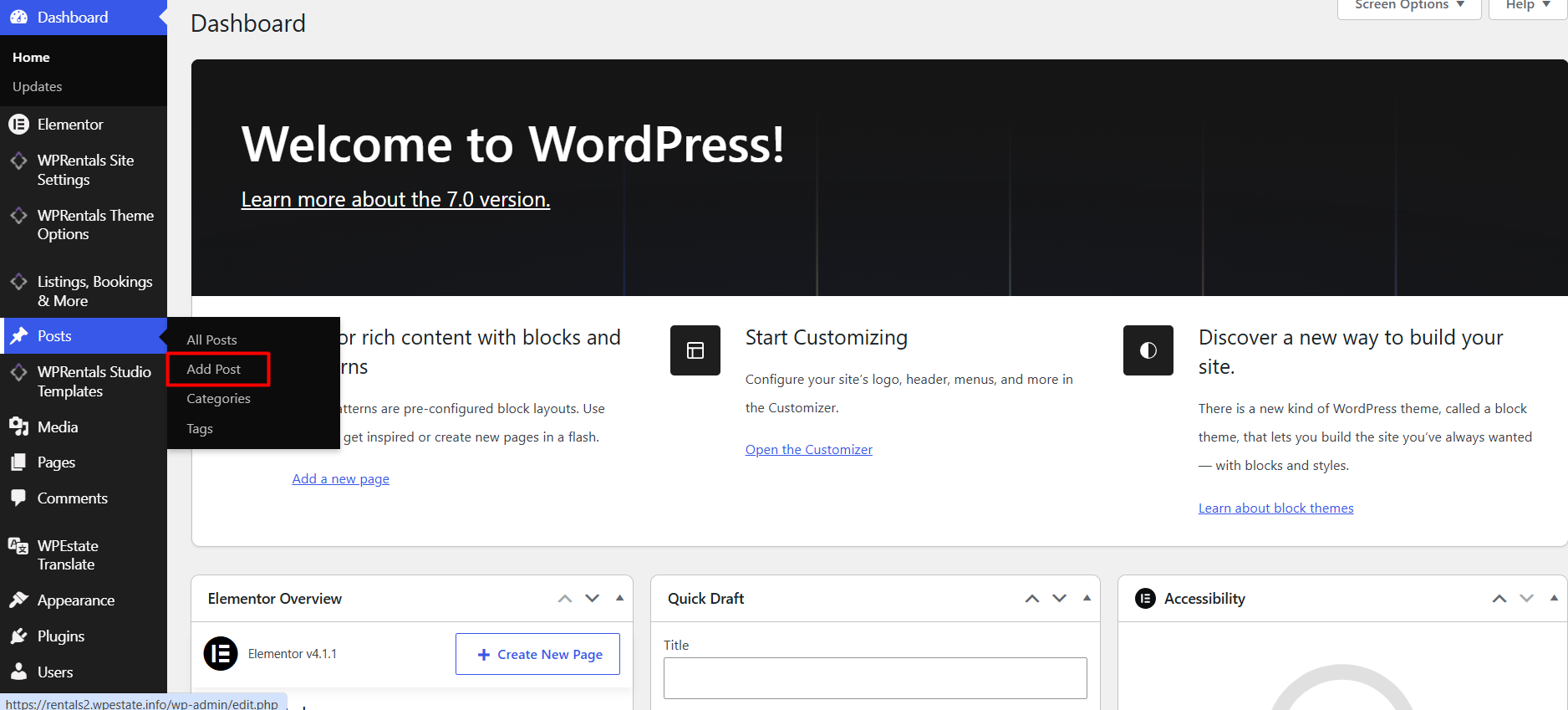
From this screen, you can add the blog post title, content, images, categories, tags, featured image, and publishing settings.
What to Add in a Blog Post
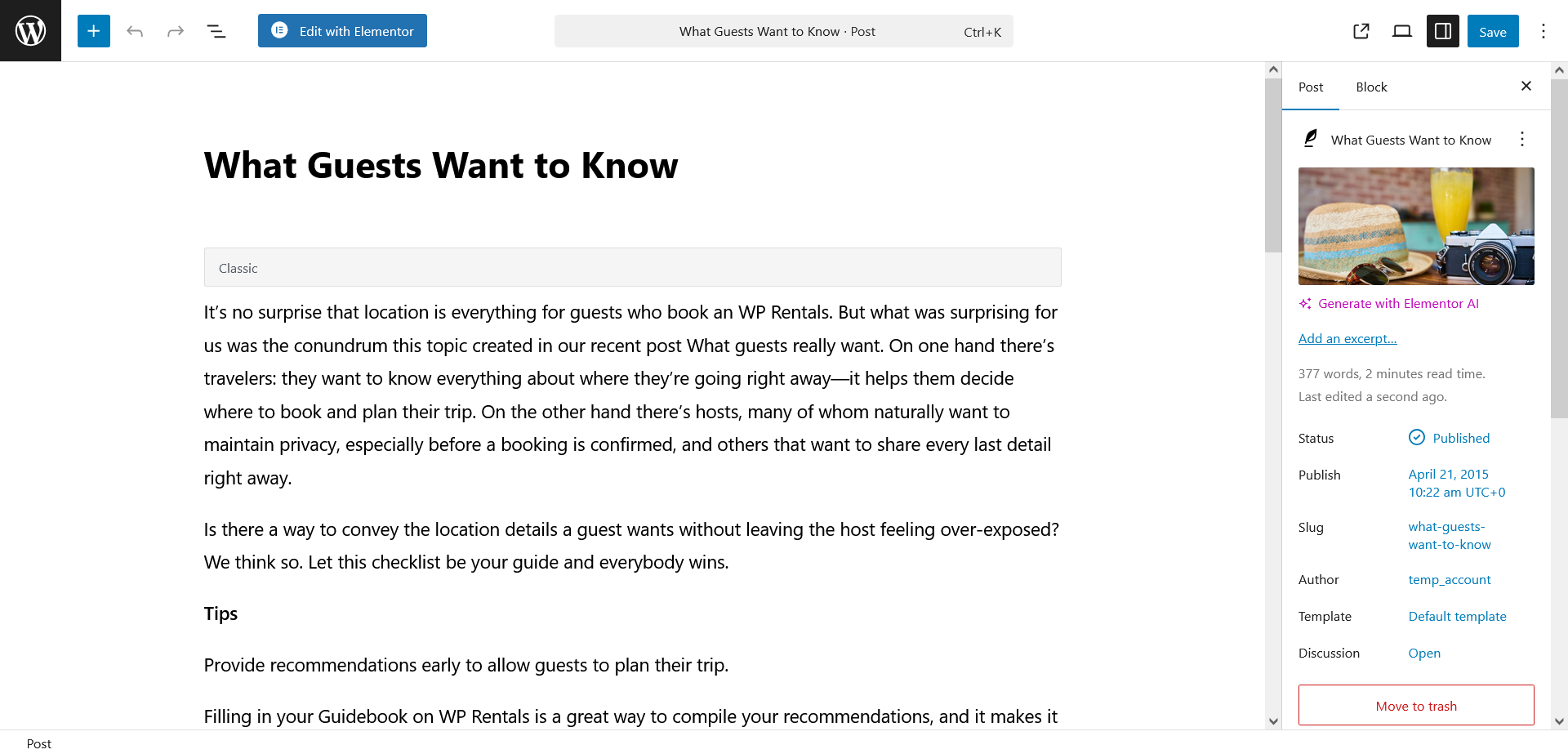
Inside the WordPress post editor, add the content you want to publish.
You can add:
- Post title – the main title of the article.
- Article content – the full text of the blog post.
- Images – images added inside the article content.
- Headings – sections that make the article easier to read.
- Links – internal or external links added inside the content.
- Excerpt – a short summary used in some blog lists or previews.
The blog post content is managed with the standard WordPress editor. WPRentals controls how the post is styled and displayed on the front end.
Add a Featured Image
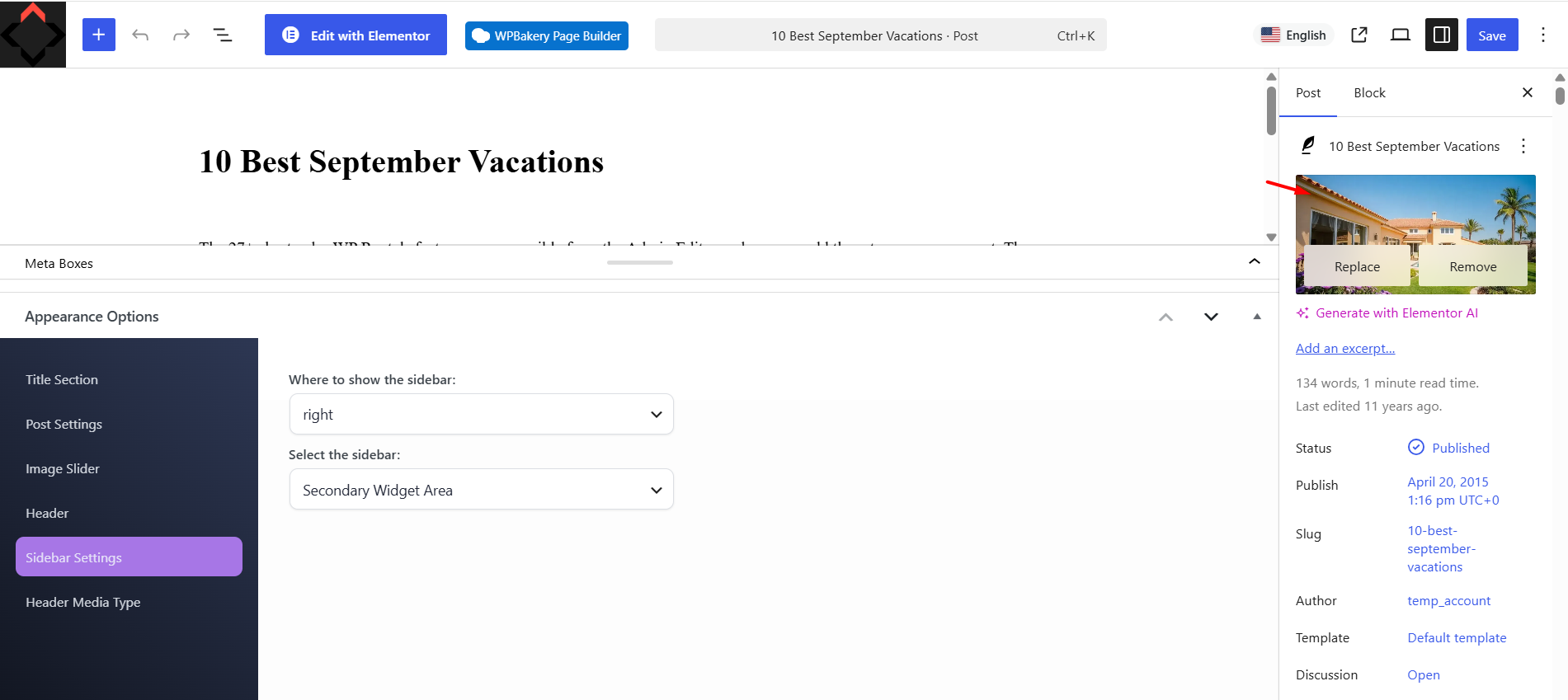
The Featured Image is the main image used for the blog post.
Depending on your blog design, the featured image can appear:
- on the single blog post page
- on blog list pages
- in recent posts widgets or shortcodes
- when the post is shared on social media
To add it, edit the post and use the Featured Image option from the post settings panel.
Do not use the same image twice, once as a Featured Image and once again at the top of the article content, unless you intentionally want the image to appear twice.
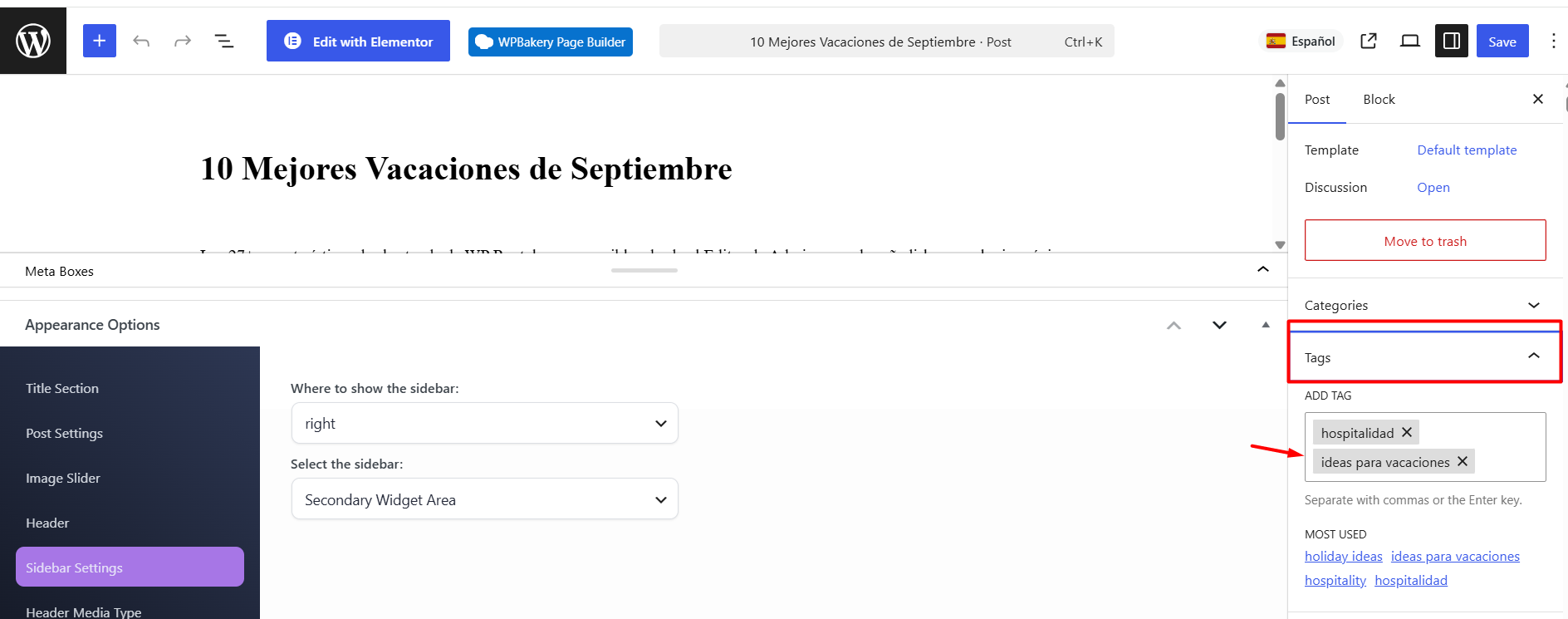
Add Categories and Tags
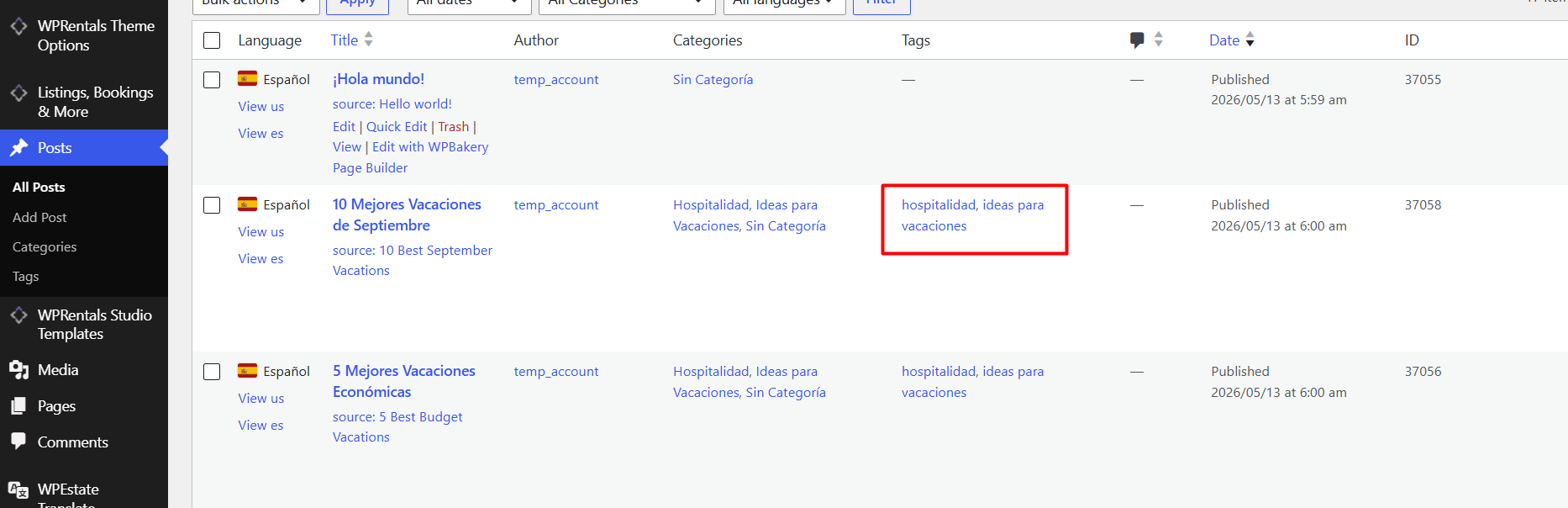
Categories and tags help organize your blog posts.
- Categories group related posts together.
- Tags describe specific topics inside the post.
WPRentals uses TAGS to show related posts on the single blog post page.
For example, if several posts are assigned to the same TAG, they can appear as related posts depending on your blog post layout.
Preview and Publish the Post
Before publishing, use the Preview option to check how the post looks.
When the post is ready, click Publish.
You can also save the post as a draft or schedule it to publish later, using the standard WordPress post options.
How the Single Blog Post Template Displays the Post
The Single Blog Post template in WPRentals displays the full blog article on the front end.
It can show:
- Title and Featured Image – displays the blog post title and main image.
- Content Area – displays the full article content added in the WordPress editor.
- Comments Section – allows visitors to leave comments, if comments are enabled.
- Related Posts – shows posts related by category.
- Social Sharing – allows visitors to share the post.
- Sidebar Widgets – can show widgets such as recent posts, categories, or custom content next to the post.
The Single Blog Post template controls the design of one individual post. It does not create the blog post itself. Blog posts are created from WordPress Admin > Posts.
How to Show Blog Posts on a Blog List Page
If you want to show multiple blog posts on one page, create a Blog List page.
Go to:
Pages > Add New
Then:
- Add a page title, for example Blog.
- From the Page Attributes section, select the Blog List template.
- Publish the page.
The Blog List page displays your published blog posts in a grid layout.
Blog List Page – Custom Page Template
Customize the Single Blog Post Design With WPRentals Studio
If you use WPRentals Studio, you can create a custom design for single blog posts with Elementor Free.
In WPRentals Studio, the template type used for blog posts is:
Single Post
The Single Post template can use WPRentals blog post widgets such as:
- WPRentals Single Post Title
- WPRentals Single Post Content
- WPRentals Single Post Featured Image
- WPRentals Single Post Excerpt
- WPRentals Single Post Meta Info
- WPRentals Single Post Breadcrumbs
- WPRentals Single Post Social
- WPRentals Single Post Comments
- WPRentals Single Post Related Posts
WPRentals Studio and Elementor Free
WPRentals Studio changes the design of the single post page. The blog post content is still created and edited from WordPress Admin > Posts.
Related Help
Blog List Page – Custom Page Template
WPRentals Studio and Elementor Free
Summary
- Blog posts are created from WordPress Admin > Posts > Add New.
- Add the title, content, featured image, categories, tags, and excerpt from the WordPress post editor.
- The WPRentals Single Blog Post template controls how one blog article appears on the front end.
- Related posts are shown based on category.
- Use the Blog List template if you want to display multiple blog posts on one page.
- Use WPRentals Studio if you want to design a custom Single Post layout with Elementor Free.