
The Verified Owner system in WPRentals lets the site admin verify property owners after reviewing an uploaded ID scan.
After the admin approves the owner, a Verified badge appears in the owner profile and in other areas where the owner status is displayed.
1. Owner Uploads the ID Scan
After registration, the owner logs in and goes to:
User Dashboard > My Profile
In the profile page, the owner can upload an ID scan, such as a passport, ID card, or driver license.
After uploading the image, the owner must save the profile.
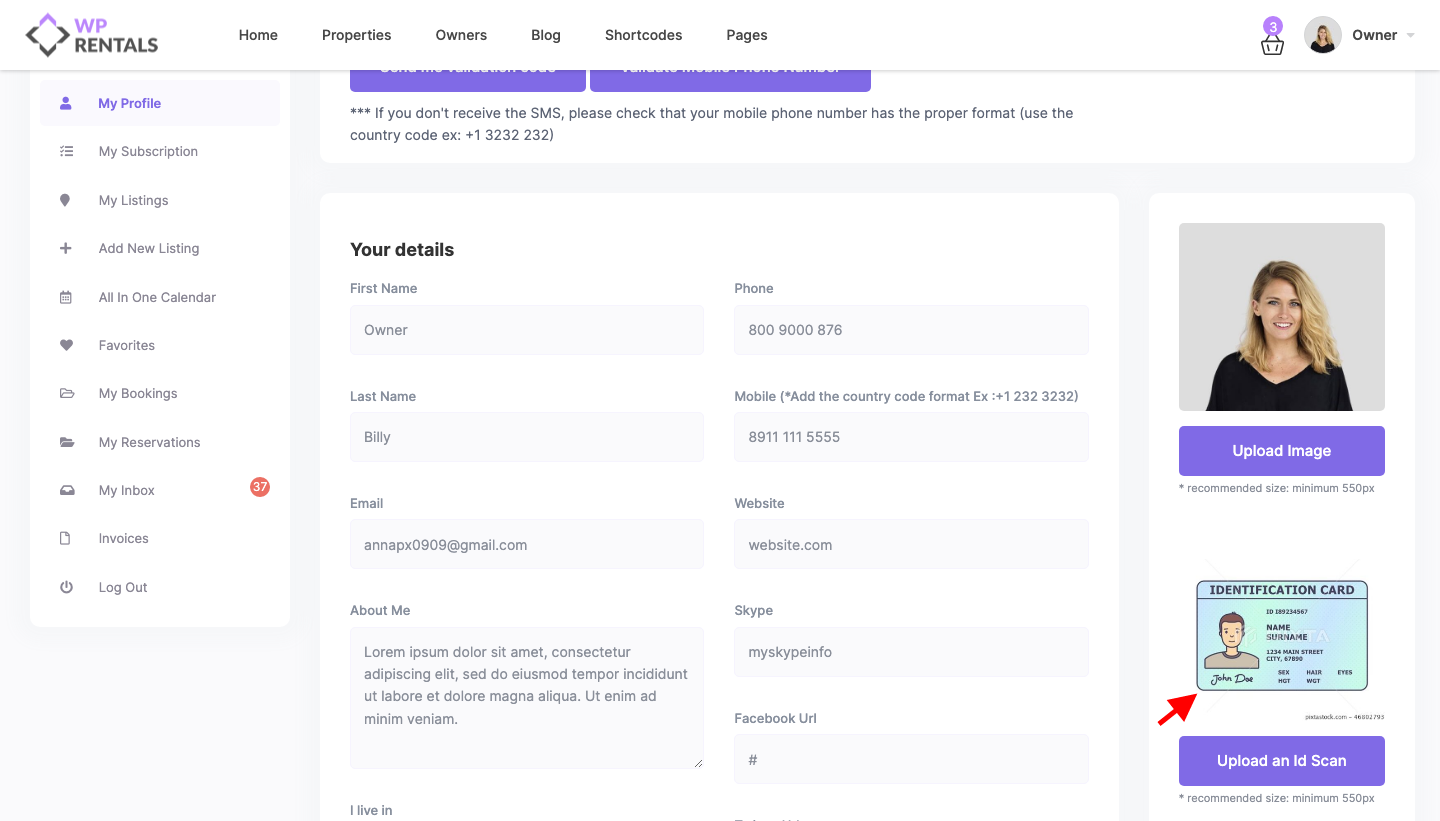
2. Admin Reviews the ID Scan
After the owner uploads the ID scan and saves the profile, the site admin receives an email notification about the ID submission.
The admin reviews the uploaded ID from:
Wp-admin > Users
Open the user account and check the uploaded ID scan.
3. Admin Marks the Owner as Verified
If the uploaded ID is valid, the admin marks the owner as verified from the user account settings.
After the user is marked as verified, the owner status changes and the verified label becomes available on the front end.
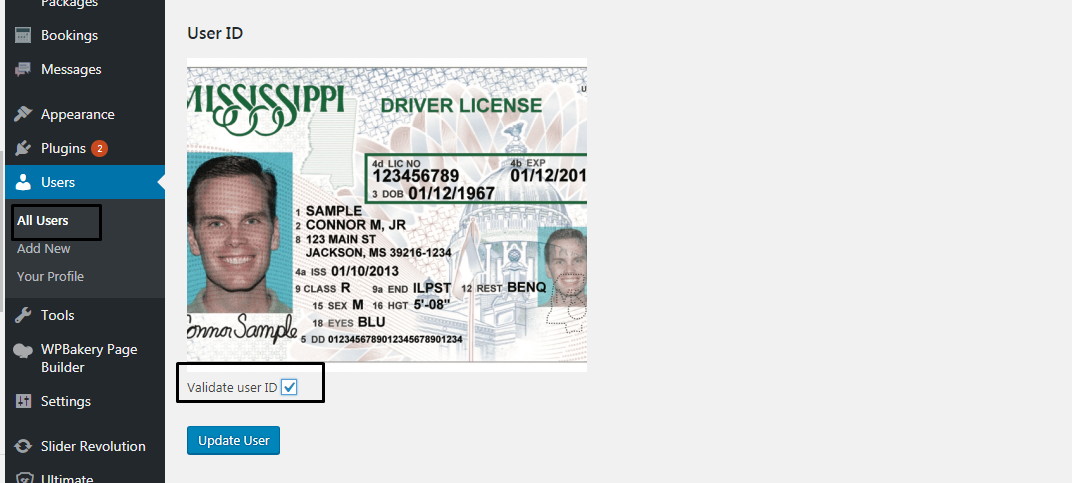
4. Where the Verified Badge Shows
After the owner is verified, the Verified badge can show in several areas of the website.
The verified badge can show:
- in dashboard areas, including the Request By column
- for renters and owners where the verified owner status is displayed
- on the public owner profile page
- in the Featured Owner shortcode
Example of the verified tag in the dashboard:
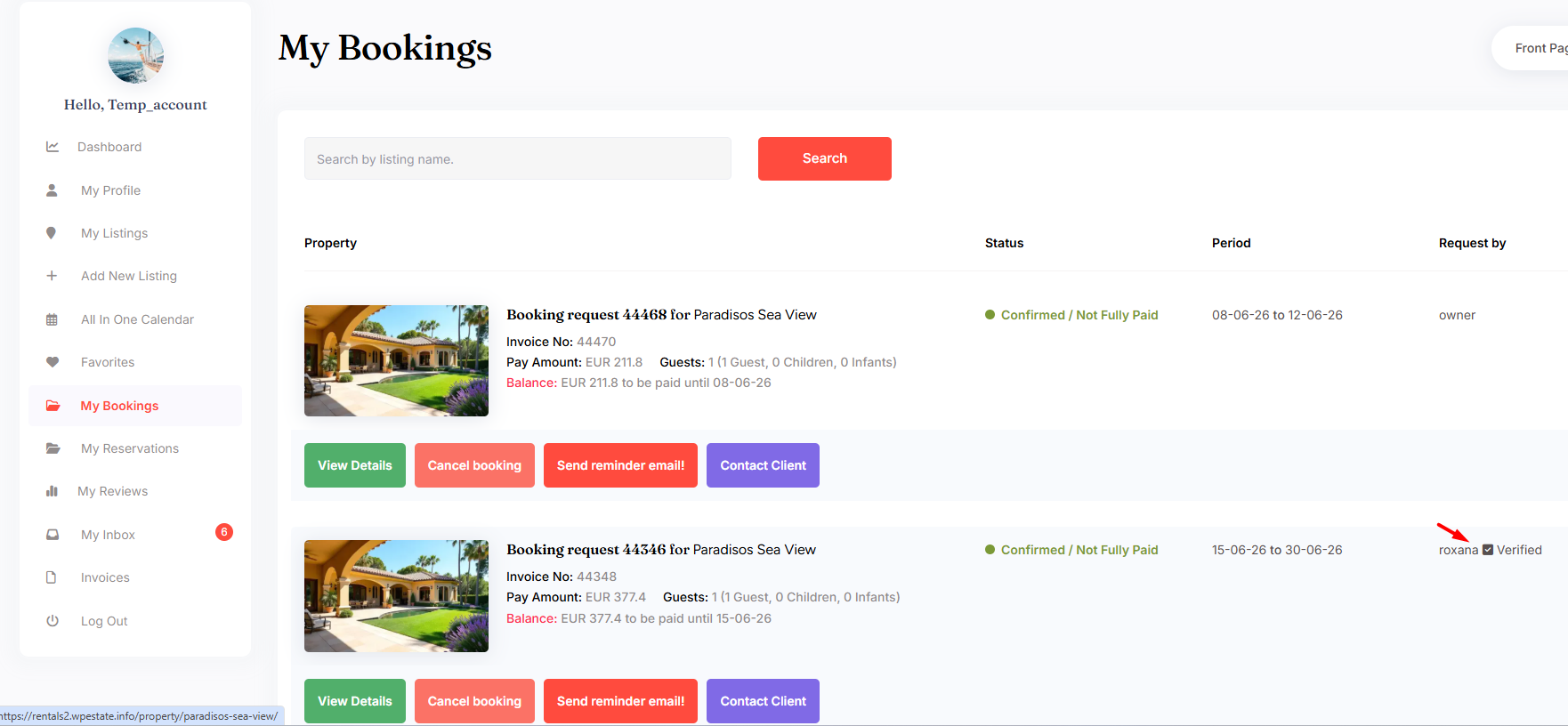
Example of the verified badge on the owner profile:
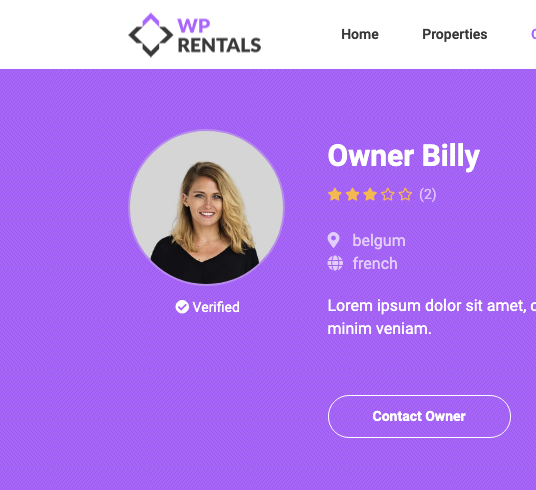
The verified badge can also show in the Featured Owner shortcode.

Important Notes
- The owner must upload the ID scan from User Dashboard > My Profile.
- The site admin must review the ID scan from wp-admin > Users.
- The owner is not verified automatically. The admin must approve the verification manually.
- The verified badge appears only after the admin marks the owner as verified.
- The verified badge can show on the owner profile, in dashboard areas visible to renters and owners, and in the Featured Owner shortcode.
- After verification, the owner cannot replace or edit the uploaded ID scan from the profile.
- If the owner needs to upload a different ID scan, the site admin must remove the verification from the user account first.
ID Scan Privacy
ID scan files uploaded for owner verification are attached as private images. The uploaded ID scan URL can be viewed only by the site administrator and is not indexed by search engines.
If you want extra protection for uploaded files, you can also protect upload directories with an upload protection plugin.
How to protect ID scan uploaded by user
Related Help
My Profile Page – User Dashboard
What is a Verified Owner & How Does It Work?