
This article explains how owner contact information works in WPRentals, who can see the owner’s contact details, how the Contact Owner form works, how messages are sent, and how owner profile pages are created.
The owner’s direct contact details and the Contact Owner form are not the same thing. Some users may not see the owner’s direct contact information, but they can still use the contact form to send a message, depending on your theme setup.
Who Can See Owner Contact Information
WPRentals protects the owner’s direct contact information. Contact details are not visible to everyone by default.
Users who cannot see owner contact information
- Non-registered users cannot see the owner’s direct contact information.
- Registered users without a confirmed booking cannot see the owner’s direct contact information.

Users who can see owner contact information
- Users with a confirmed booking can see the owner contact information.
- Owners can see their own contact information.
- Admins can see all owner contact information by default.

Contact information visibility is different from the contact form. A visitor may not see the owner’s direct email or phone number, but they can still send a message through the Contact Owner form if the form is displayed.
Contact Owner Form for Logged-In Users
When a logged-in user contacts the owner from the property page, the form includes the booking-related fields and the message field.
The form can include:
- check-in date
- check-out date
- guests
- message

Because the user is already logged in, the system already knows the user account connected to the message.
Contact Owner Form for Non-Logged-In Users
When a visitor is not logged in, the Contact Owner form includes extra identity fields so the owner can understand who sent the message.
The form can include:
- name
- check-in date
- check-out date
- guests
- message
- phone number, if enabled in Theme Options

Non-logged-in users cannot see the owner’s direct contact information. They can only send the message through the form.
How Messages Are Sent and Received
When a user sends a message through the Contact Owner form, the owner receives the message by email and can also see it in the dashboard inbox.
- The owner receives an email notification for the new message.
- The email includes the message details.
- The message is also visible in the owner’s Dashboard Inbox.
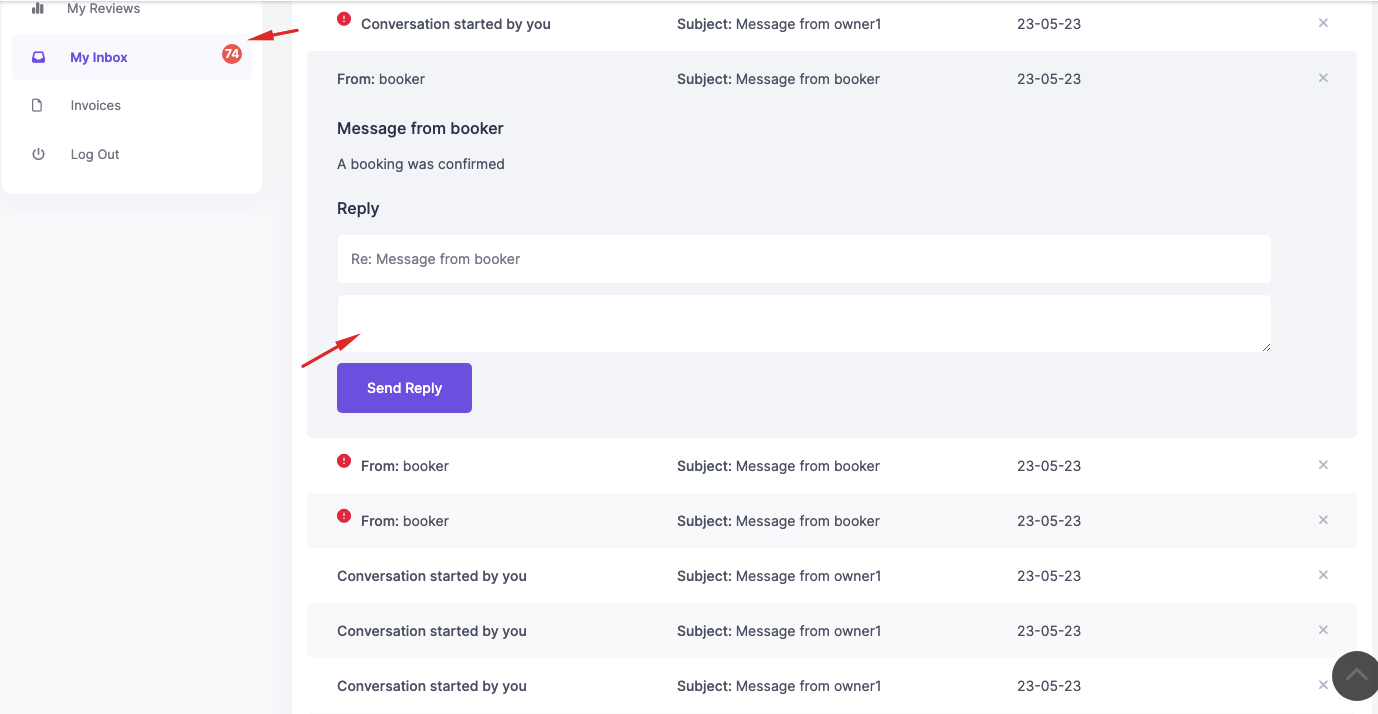
If the message is sent from a non-logged-in visitor, the message is sent to the owner profile email address.

How Replies Work
When the owner replies to a message, the recipient receives the reply by email.
- The reply is sent to the email address connected to the original message.
- For registered users, the reply is sent to the email address used for registration.
- The recipient can also see the reply in their own dashboard under My Inbox.
This allows both the owner and the user to track the conversation from the dashboard inbox.
Enable GDPR and Mobile Number in the Contact Form
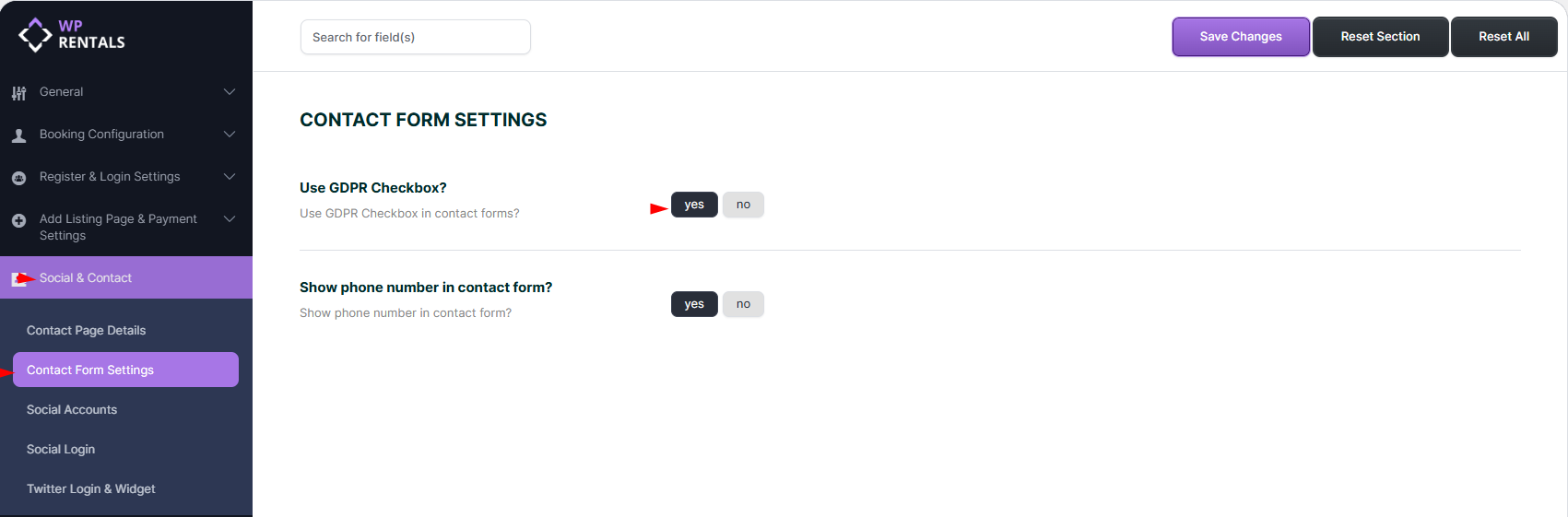
Admins can enable additional fields for the contact form from:
Theme Options > Contact Form Settings
From this section, you can manage:
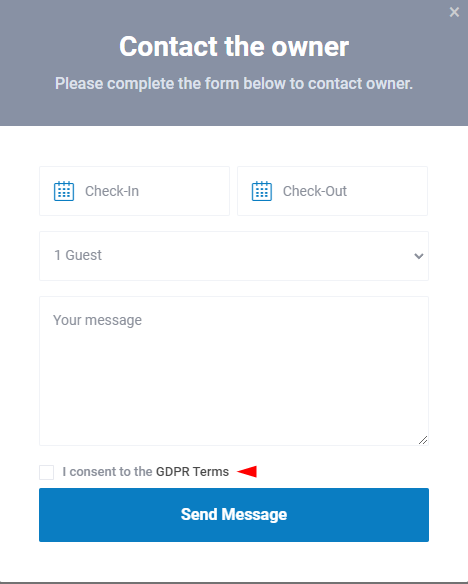
- Enable GDPR Checkbox
- Show Mobile Number / Phone Number in Contact Form
Create the GDPR Page
If you enable the GDPR checkbox, you must also create the GDPR page.
Go to:
Pages > Add New
Create a new page and assign the GDPR Terms template.

This is how the GDPR checkbox shows in the contact form:
How Owner Profile Pages Are Created
Owner profile pages are created when users register as owners from the front-end registration form, depending on your registration settings.
Owner profile pages are created in these cases:
- users register from the front-end Register Form
- the Renter / Owner Separation option is enabled and the user selects I want to book and rent
- the Renter / Owner Separation option is disabled and all users are allowed to register as owners
Renter / Owner Separation Setting
Go to:
Theme Options > Register & Login Settings > Renter / Owner Separation
If Renter / Owner Separation Is Enabled
- I want to book and rent creates an owner account and owner profile page. This user can list properties.
- I only want to book creates a renter account. This user does not receive an owner profile page and cannot list properties.
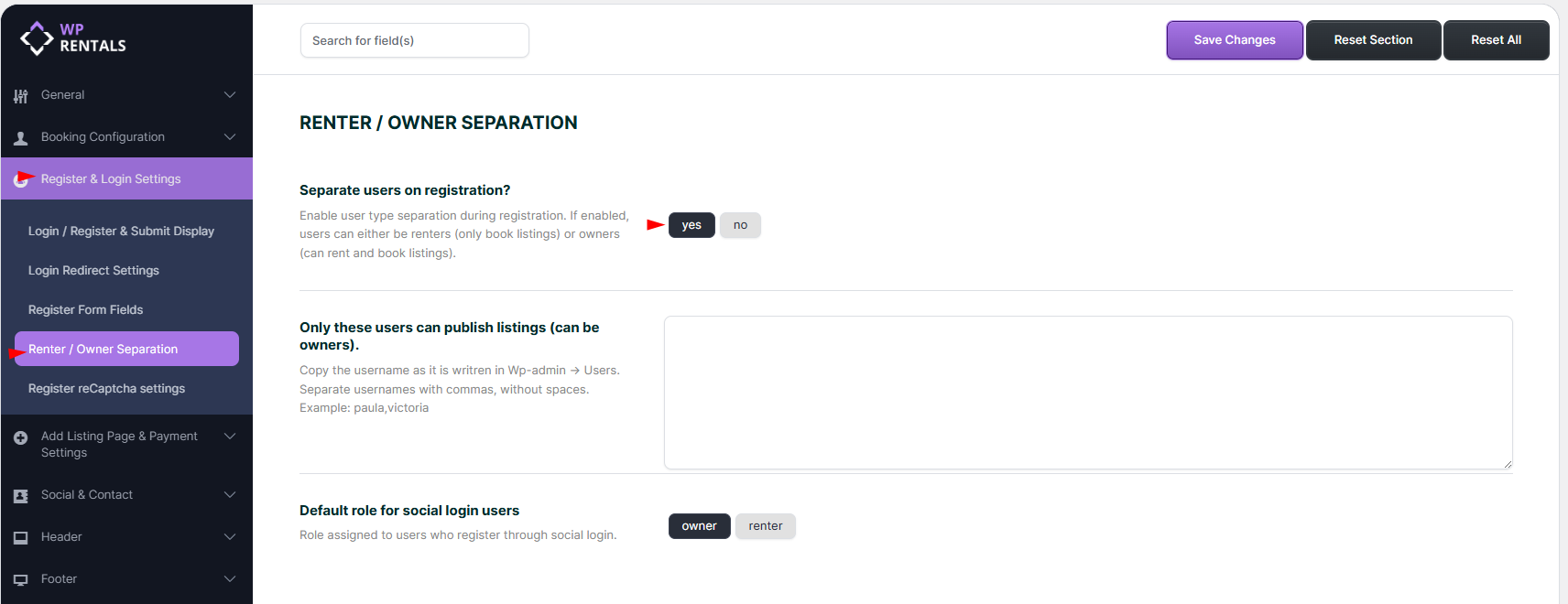
If Renter / Owner Separation Is Disabled
- All users register as owners and can list properties, depending on the rest of your submission settings.
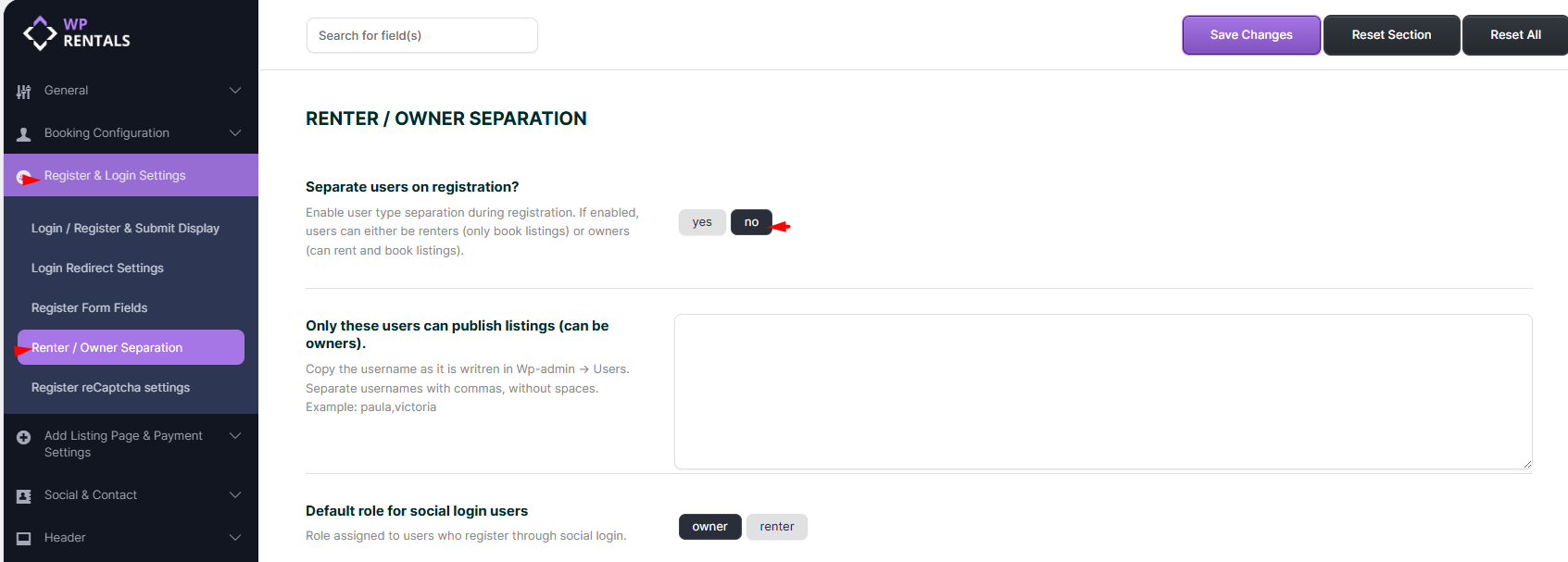
If an owner profile page is not created, check the user registration method and the Renter / Owner Separation settings first.
Summary
- Non-registered users cannot see owner direct contact information.
- Registered users without a confirmed booking cannot see owner direct contact information.
- Users with a confirmed booking can see owner contact information.
- Owners can see their own contact information.
- Admins can see all owner contact information.
- The Contact Owner form can still be used to send a message, even when direct contact information is hidden.
- Messages are sent to the owner by email and are also visible in the dashboard inbox.
- Replies are sent by email and are also visible in the recipient’s dashboard inbox.
- GDPR and mobile number options are managed from Theme Options > Contact Form Settings.
- Owner profile pages are created when users register as owners from the front-end registration form.