
WPRentals comes with a library of ready-made Elementor designs called WPRentals Templates. You can open it from inside the Elementor editor and insert a full page design or a single section (for example a hero, a search area, a listings grid or a testimonials block) with one click. You then edit the inserted design like any other Elementor content.
The library is part of the WPRentals – Theme Core Functionality plugin, so it is available as soon as the plugin and Elementor are active.
Open the WPRentals Templates library
- In wp-admin, go to Pages and open the page with Edit with Elementor.
- Scroll to the bottom of the page in the editor. Below the last section you will see the “Drag widget here” area with a row of round buttons.
- Click the last round button, the one with the WPRentals logo, next to the + (Add New Section) and the folder buttons.
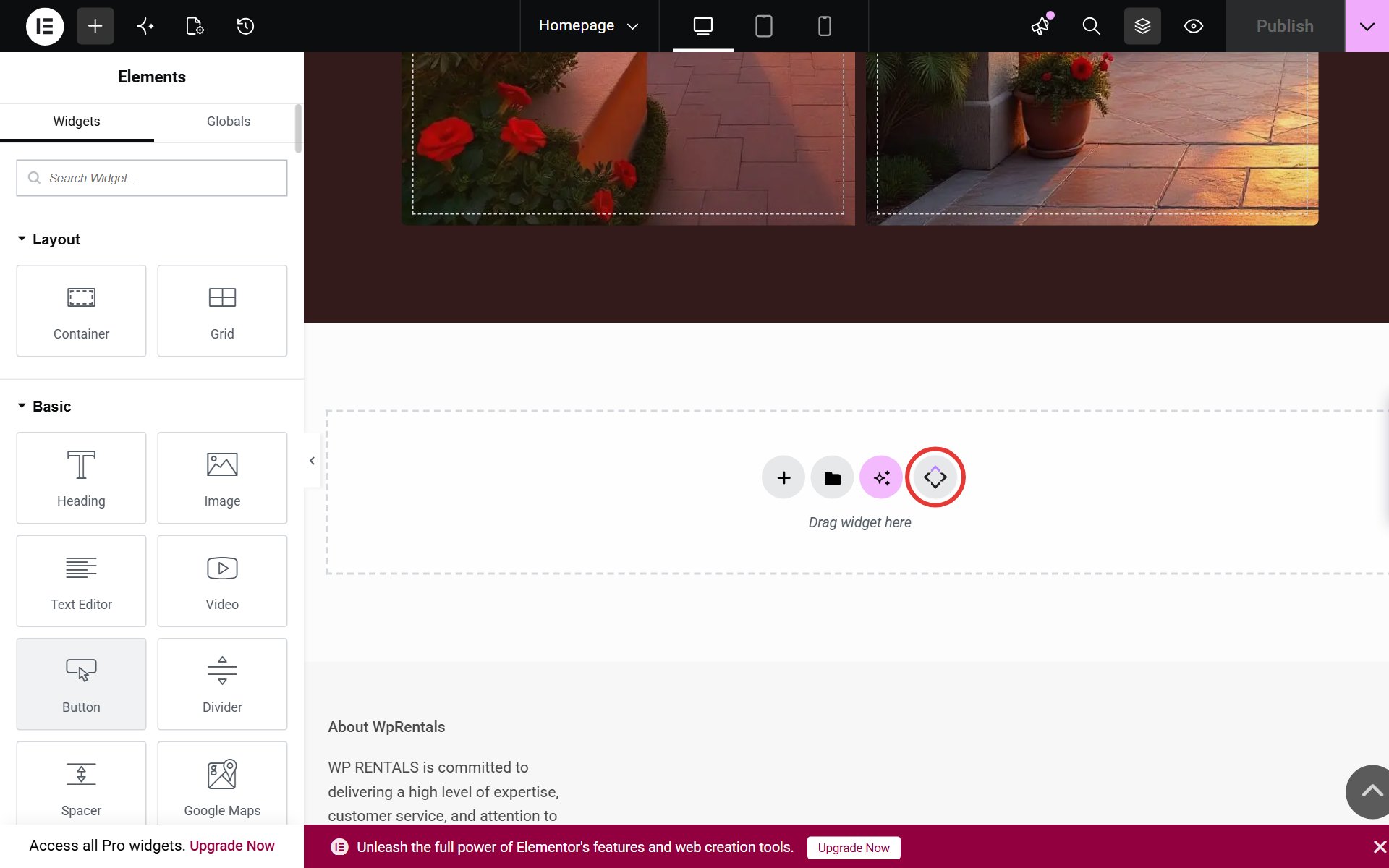

The WPRentals Templates window opens. It has two tabs: Custom Blocks and Full Pages.
Custom Blocks – single sections
The Custom Blocks tab holds single sections you can add to any page. Use the drop-down list on the left to show only one kind of block (for example Hero), or type a word in the Search box on the right.
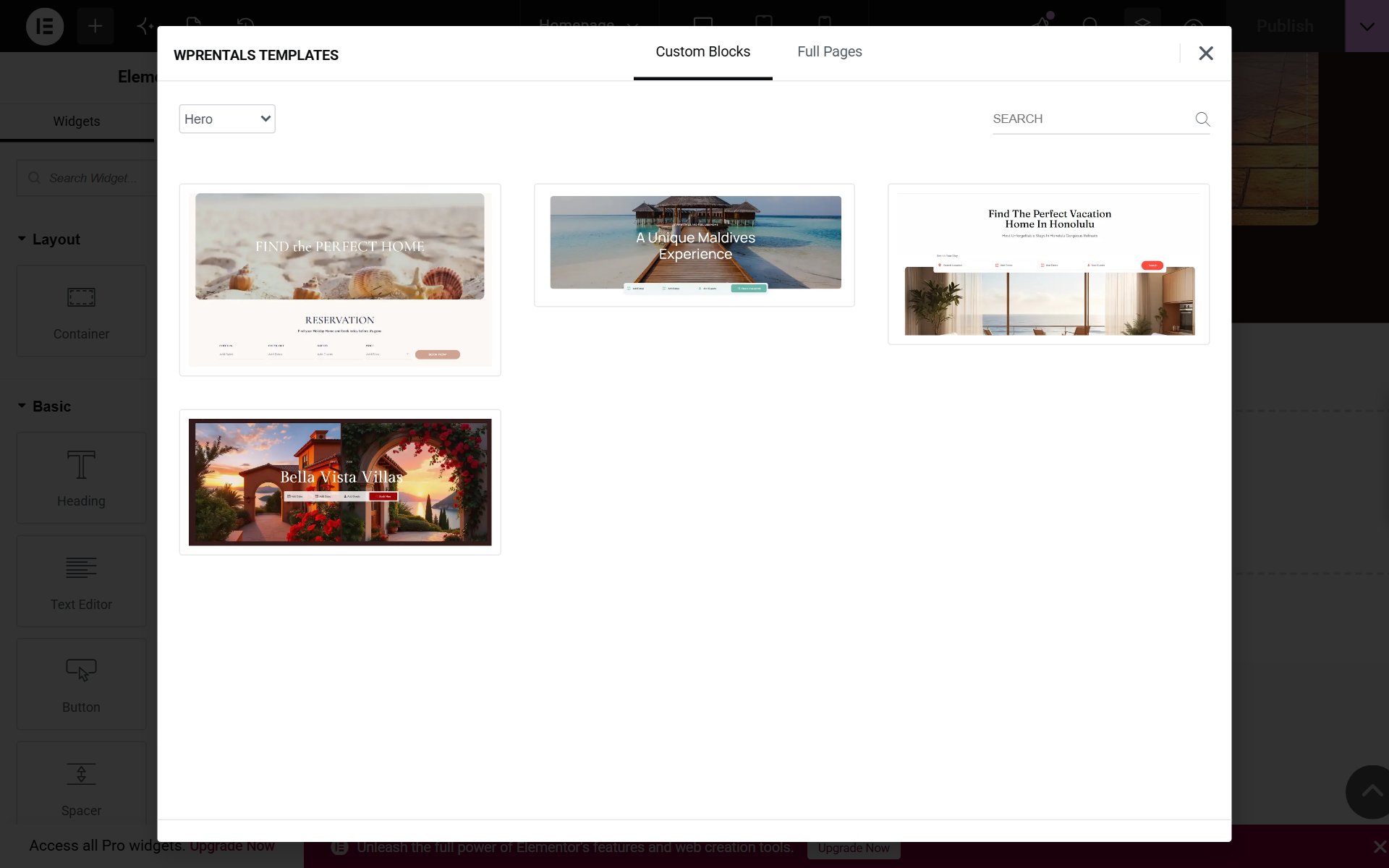
To see a design at full size first, click Live Preview under it; it opens in a new tab. To use a block, click Insert. The block is added at the bottom of the page. To move it, drag the section by its handle in the editor, or open the Structure panel (the layers icon in the top bar) and drag it to the place you want. Then click Publish or Update to save the page.
Full Pages – complete page designs
The Full Pages tab holds complete page designs, such as the homepages from our demos (Home Honolulu, Home Cabos, Home Barcelona and more).
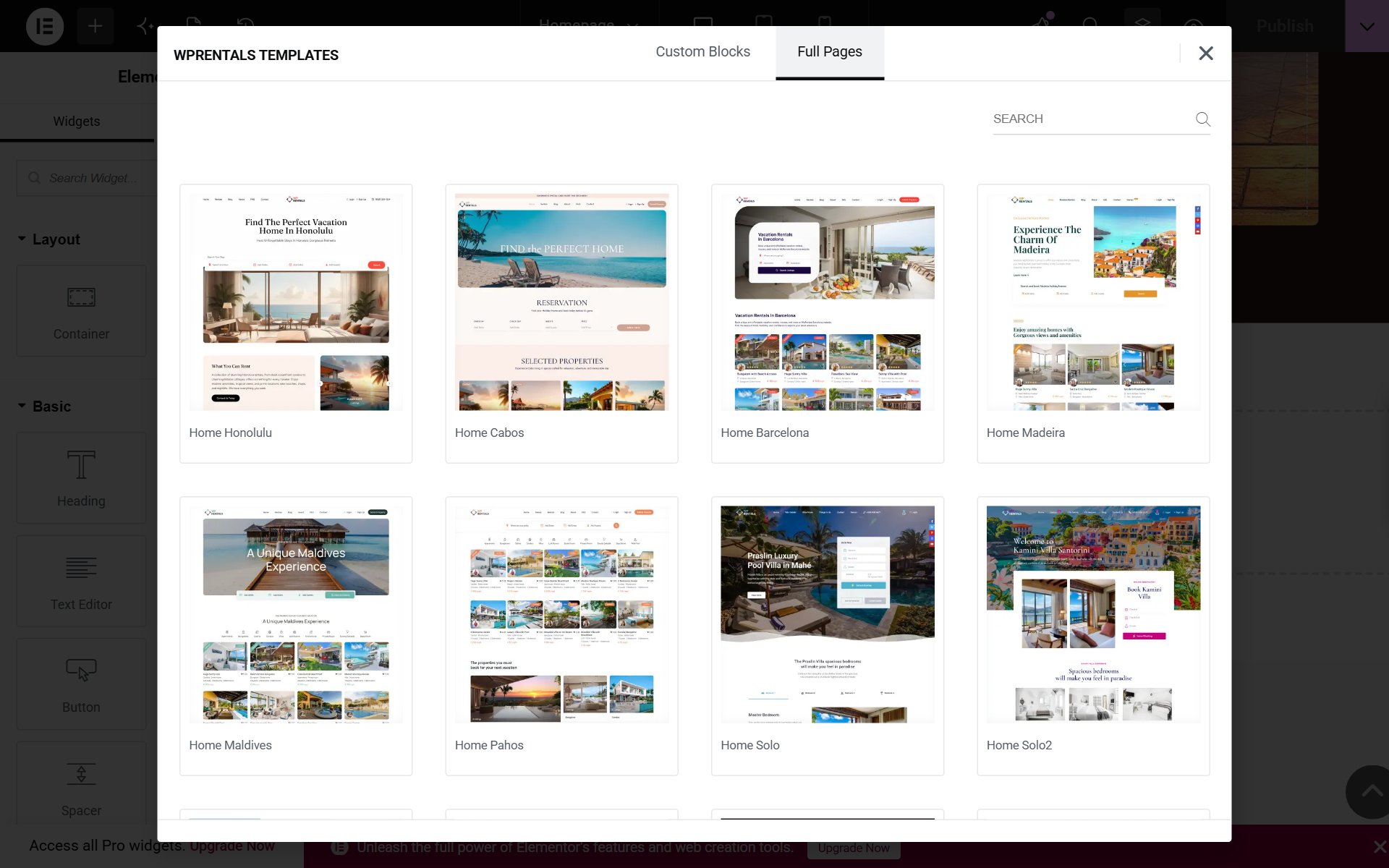
A full page is also added at the bottom of the current page, after any content that is already there. For a clean result, insert a full page design into a new, empty page.
Images: when you insert a block or a page, the images it uses are copied into your Media Library, so they stay on your site. Replace them with your own photos when you edit the design.
Example: replace the theme hero header with an Elementor hero
Some demo pages (for example the Main demo homepage) show a Hero Media Header at the top, such as the listings slider. This header is a theme setting, not an Elementor section, so you cannot edit it in Elementor. If you want a hero you can fully edit in Elementor, turn the theme header off and insert a Hero block instead.
Step 1 – turn off the theme hero header. Open the page with the normal WordPress editor (Edit, not Edit with Elementor). Scroll down to the Appearance Options box and open the Header Media Type tab.
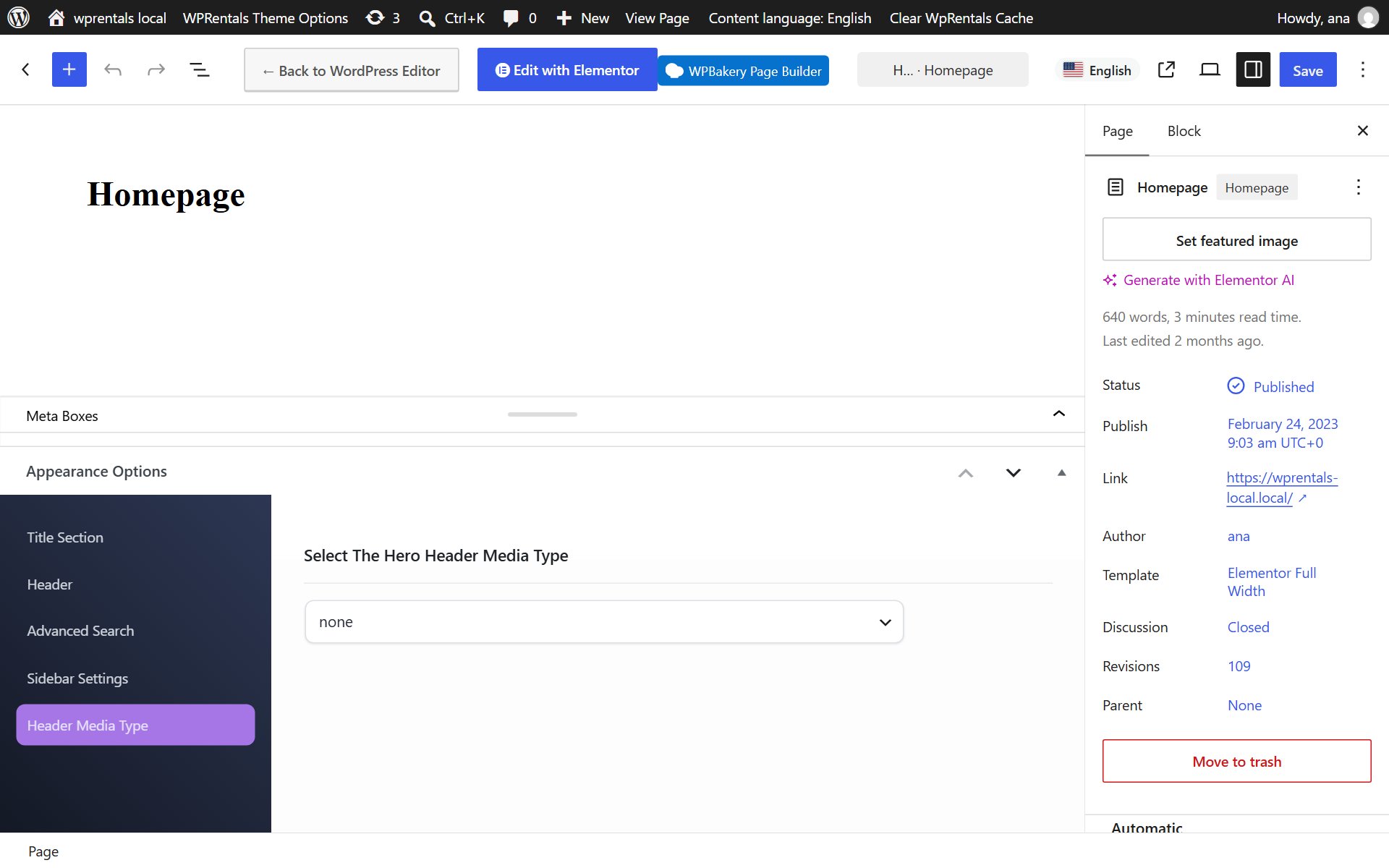
In Select The Hero Header Media Type choose none, then click Update (or Save).
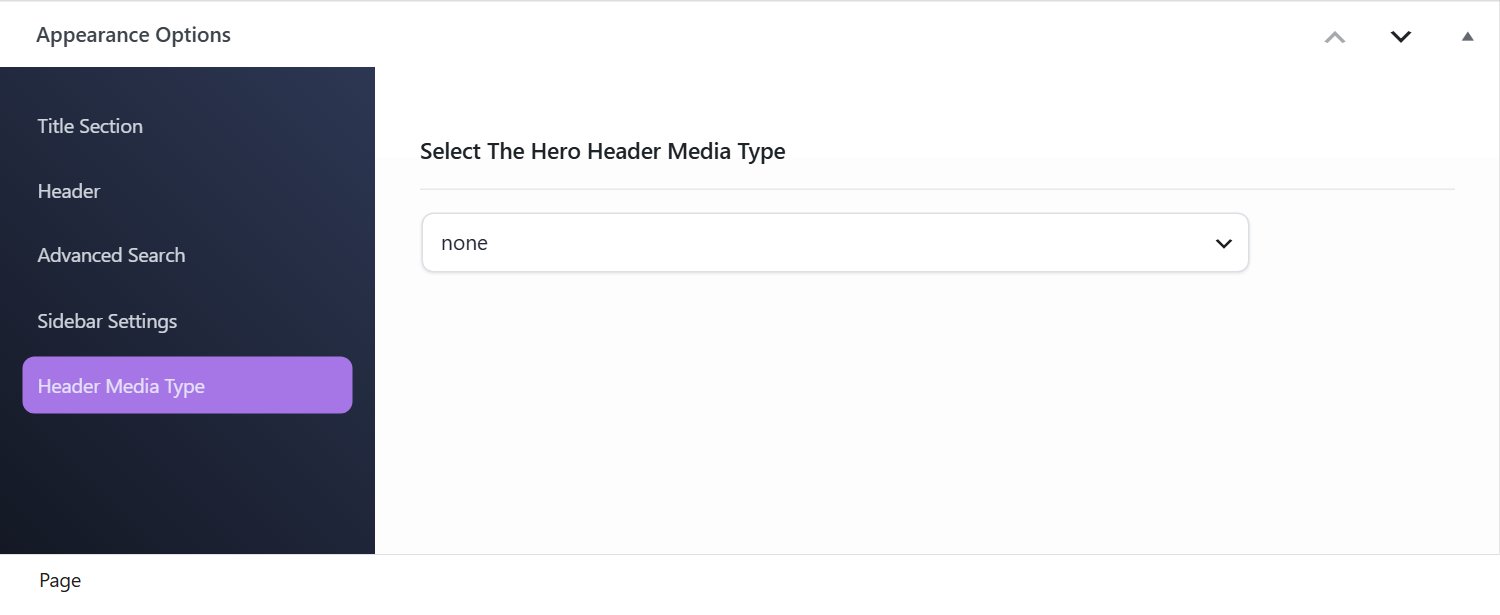
Step 2 – insert a Hero block. Open the page with Edit with Elementor, open the WPRentals Templates library as shown above, go to Custom Blocks and choose Hero in the drop-down list. Insert the design you like.
Step 3 – move it to the top and edit it. Drag the new hero section to the top of the page. Change the image, the texts and the buttons, then click Update. Clear your cache and check the page.
For more about the theme hero header types (image, video, slider and others), see Custom Hero Media Header Options For Pages.