
WPRentals Theme Documentation WPRentals Theme Documentation

  • Client Support
  • Video Tutorials
  • WPRentals
  • WPEstate
  • API
Home / Technical how to / How to Change the Default Categories Icon from Listing Card Unit

How to Change the Default Categories Icon from Listing Card Unit

833 views

The theme includes a default icon for the actions area, added via CSS using a Fontello icon.
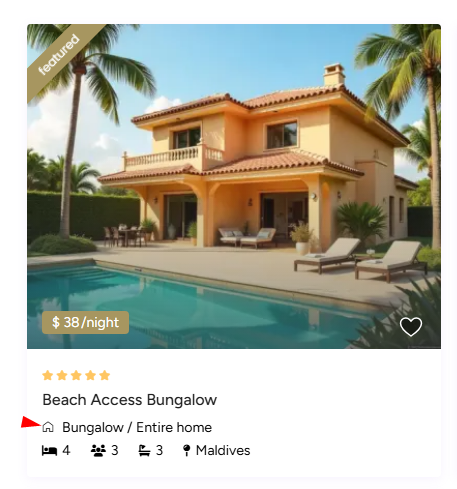
If you want to replace this icon with a Font Awesome Free icon, you can easily do so through the Customizer → Additional CSS.

Default Icon CSS

By default, the icon is added with the following CSS:

.actions_icon:after {
position: absolute;
top: 17px;
left: 12px;
width: 20px;
height: 23px;
background-repeat: no-repeat;
content: "\e80e";
font-family: "fontello";
color: #b881fc;
font-size: 27px;
}

How to Replace the Icon

To change the icon, go to:

Appearance → Customize → Additional CSS

Add this code:

.actions_icon:after {
content: "\f007"; /* Replace with any Font Awesome Free icon code */
font-family: "Font Awesome 5 Free";
font-weight: 900;
}

Then replace \f007 with the Unicode value of the Font Awesome Free icon you want to use.

You can browse available icons at:
https://fontawesome.com/icons

Technical how to

Related Articles

  • How to Make a Contact Button Open WhatsApp
  • How to add a new currency in Theme Options for payments.
  • How to Disable WordPress Image Compression and Preserve Original Quality
  • How SMS Notifications Work in WP Rentals (WpestateEmail Class): A Complete Guide

HELP CATEGORIES

  • 61. General
  • 72. Installation & Basic Setup
  • 373. How Booking Works
  • 18Advanced Search
  • 17Elementor WPRentals Studio
  • 14Email Notifications
  • 23FAQ
  • 14Installation FAQ
  • 10Menu Options
  • 33Owner & Renter
  • 8Page Templates
  • 24Property / Listing
  • 22Shortcodes
  • 4Supported Maps
  • 99Technical how to
  • 5Third Party plugins
  • 4Translation & Multi Languages
  • 3WordPress Blog Post
  • 13WordPress Widgets
  • 12WP Rentals Payments
  • 80WP Rentals Theme Options
  • 26WPML & Weglot

Join Us On

Powered by WP Estate - All Rights Reserved
  • Client Support
  • Video Tutorials
  • WPRentals
  • WPEstate
  • API