
WPRentals Theme Documentation WPRentals Theme Documentation

  • Client Support
  • Video Tutorials
  • WPRentals
  • WPEstate
  • API
Home / Technical how to / How to change the numbers in dropdowns for bathrooms, rooms and bedrooms

How to change the numbers in dropdowns for bathrooms, rooms and bedrooms

6327 views

Half Map Search

File path

wprentals/classes/rentalsSearch.php

This changes value for all dropdowns (r0oms, bedrooms,  bathrooms)
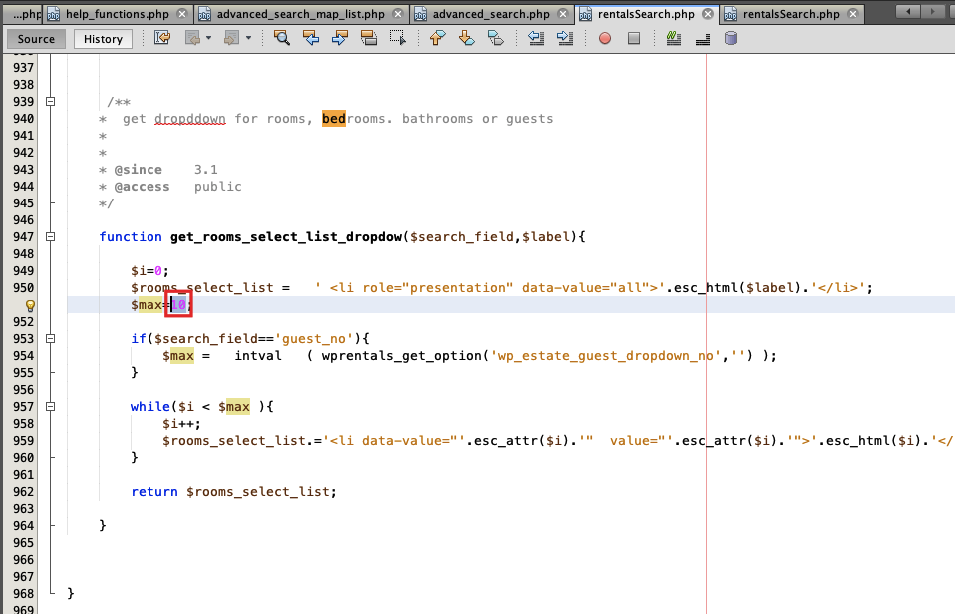
If you wish different values for each dropdown you must add new code as in this example and than change the value to the one you wish for each field

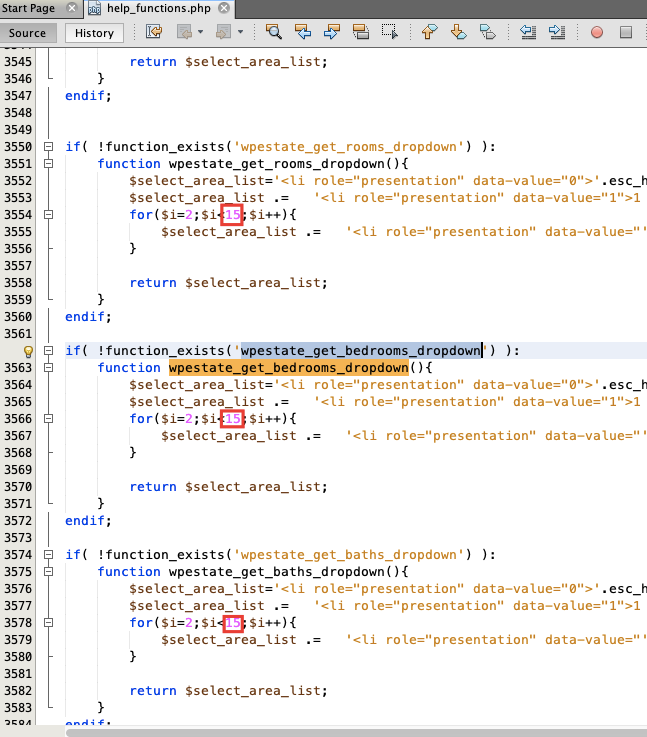
Search type and type 2

Change 15 with your chosen value for the fields you wish to modify

File path – wprentals/libs/help_functions.php
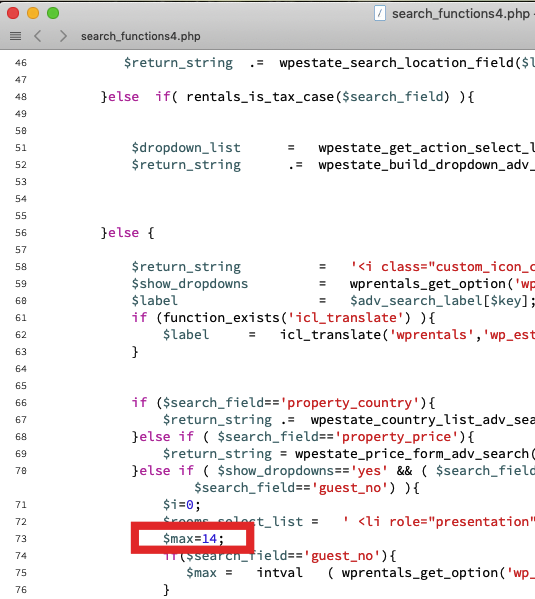
Custom Search Type 3 and Custom search type 4

Change in wprentals/libs/search_functions4.php

$max=10;

Change “10” to your value
Technical how to

Related Articles

  • How to add a new currency in Theme Options for payments.
  • How to Disable WordPress Image Compression and Preserve Original Quality
  • How to Change the Default Categories Icon from Listing Card Unit
  • How to change the background color and logo for admin login page

HELP CATEGORIES

  • 71. General
  • 102. Installation & Basic Setup
  • 393. How Booking Works
  • 20Advanced Search
  • 18Elementor Free & WP Rentals Studio
  • 13Email Notifications
  • 14FAQ
  • 14Installation FAQ
  • 10Menu Options
  • 27Multi-Languages - 3rd party
  • 33Owner & Renter
  • 9Page Templates
  • 23Property / Listing
  • 22Shortcodes
  • 4Supported Maps
  • 98Technical how to
  • 5Third Party plugins
  • 3Translation
  • 3WordPress Blog Post
  • 13WordPress Widgets
  • 13WP Rentals Payments
  • 79WP Rentals Theme Options

Join Us On

Powered by WP Estate - All Rights Reserved
  • Client Support
  • Video Tutorials
  • WPRentals
  • WPEstate
  • API